



Simply download our DT Pro Theme Pack (ZIP):
Unzip the file. Inside, you will find a folder (SVG) and all themes (CSS files). Simply copy everything into the DT themes folder:
Fish
# Linux / MacOS
~/.config/darktable/themes/
# Linux  Flatpak
~/.var/app/org.darktable.Darktable/config/darktable/
# Windows
C:\Users\USER-NAME\AppData\Local\darktable\Activate your DT Pro Theme:
Go to the settings (gear icon).

- Select the “general” tab.
- Select the “DT Pro” theme.
Overview of DT Pro Themes:
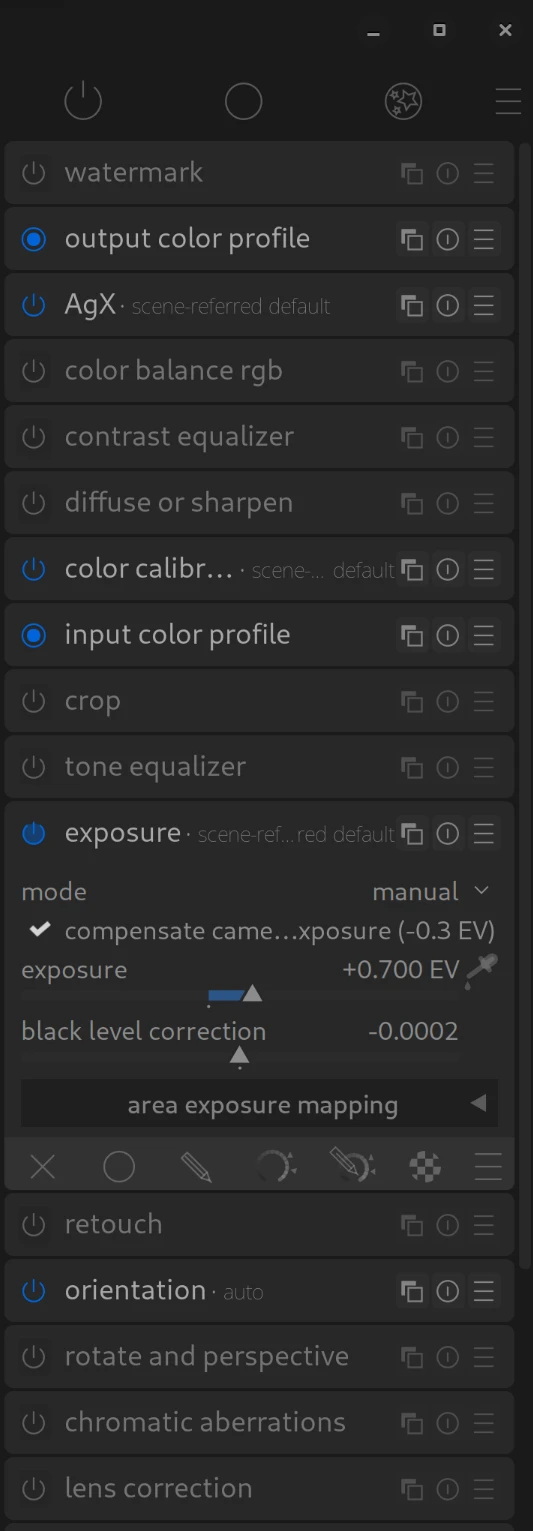
DT-Pro-blue
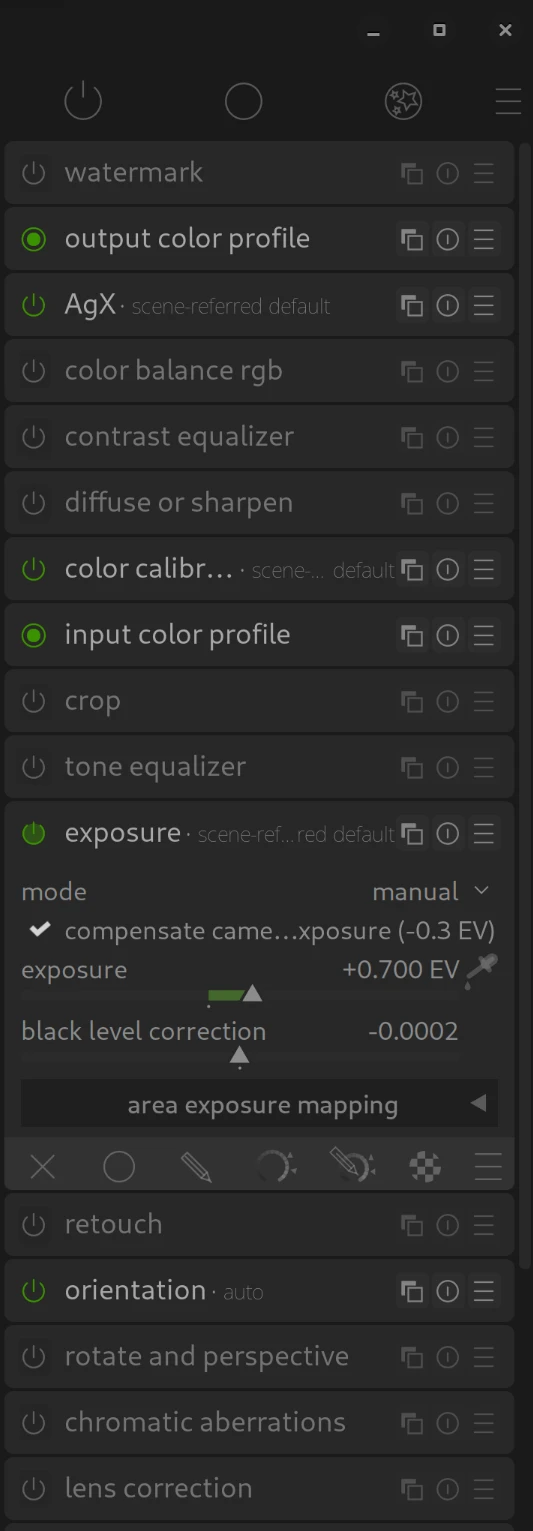
DT-Pro-green
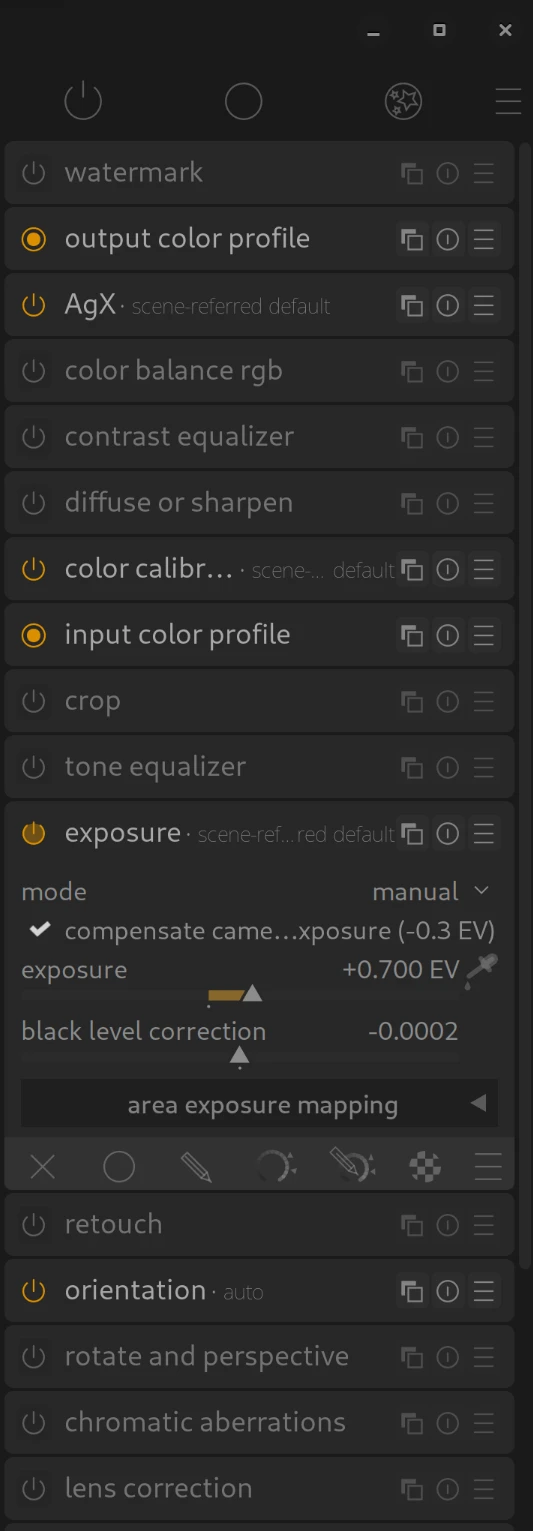
DT-Pro-orange
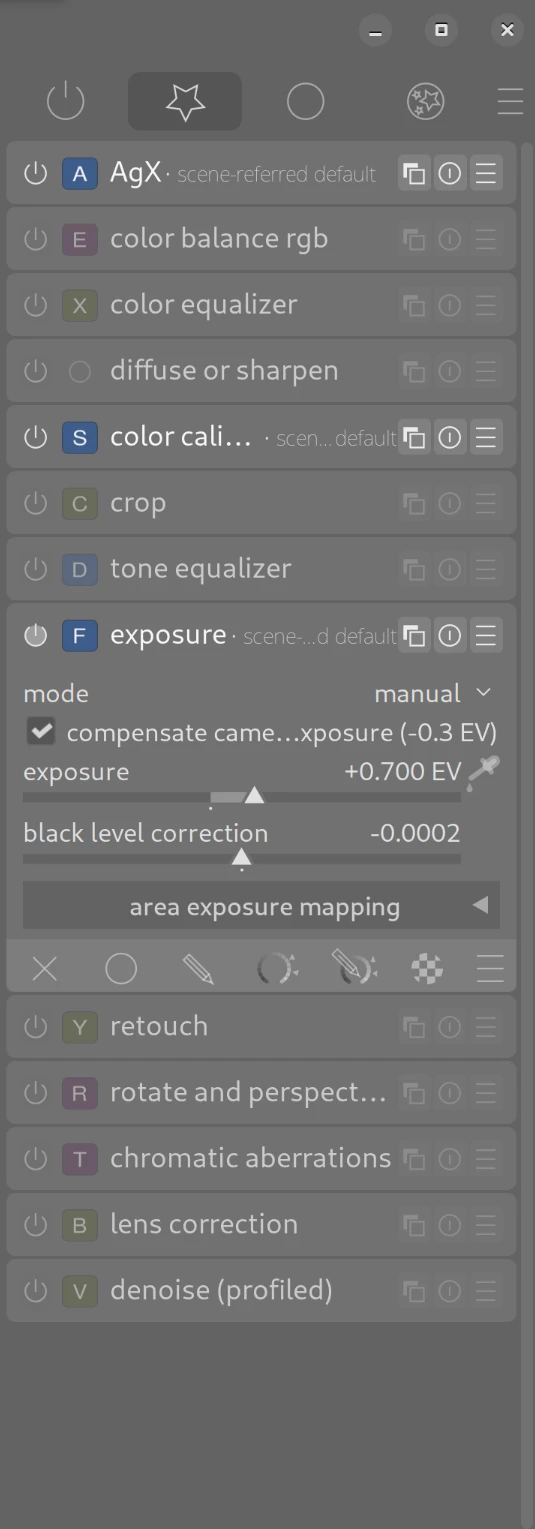
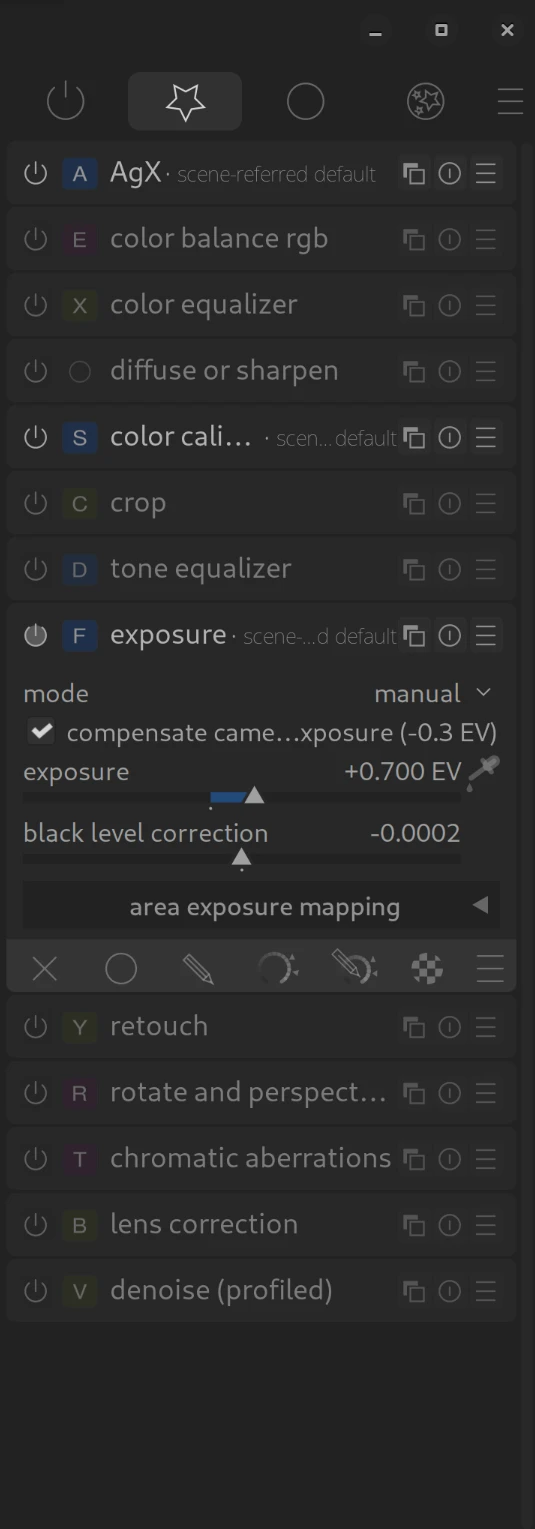
The following “SC” themes are intended for easily learning our DT Pro Shortcuts.
DT-Pro-grey-SC
DT-Pro-dark-SC
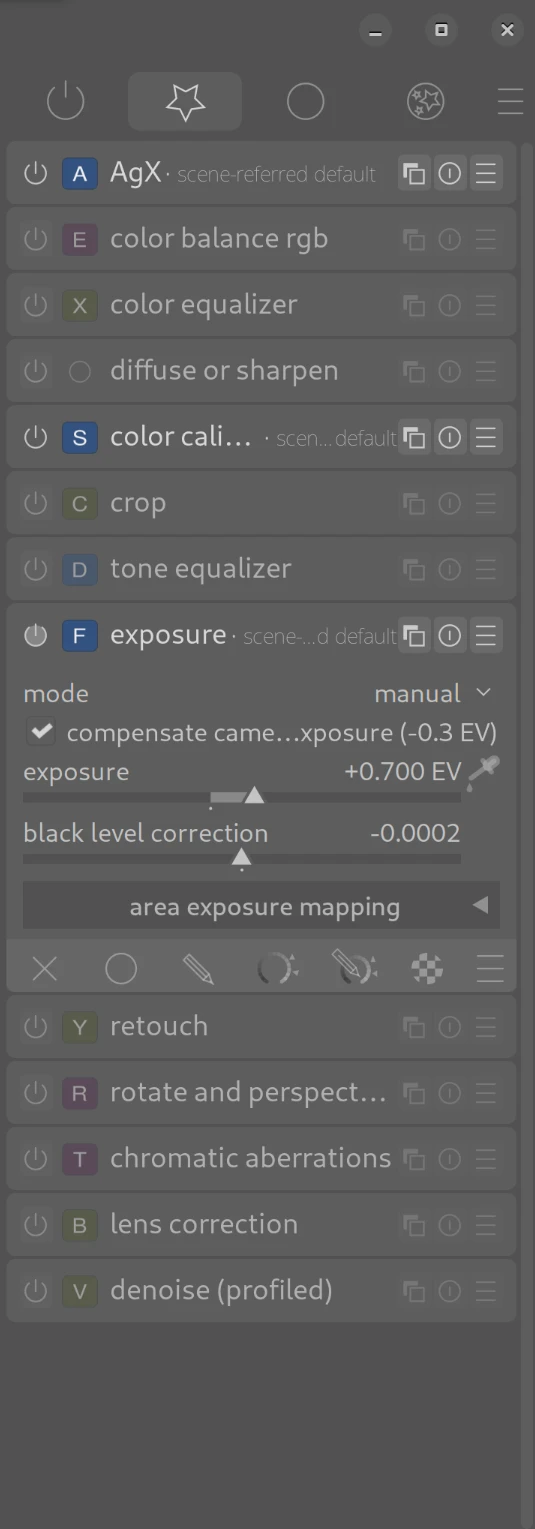
DT-Pro-darker-SC
If you do not wish to use our DT Pro “SC” themes (anymore):
DT-Pro-grey
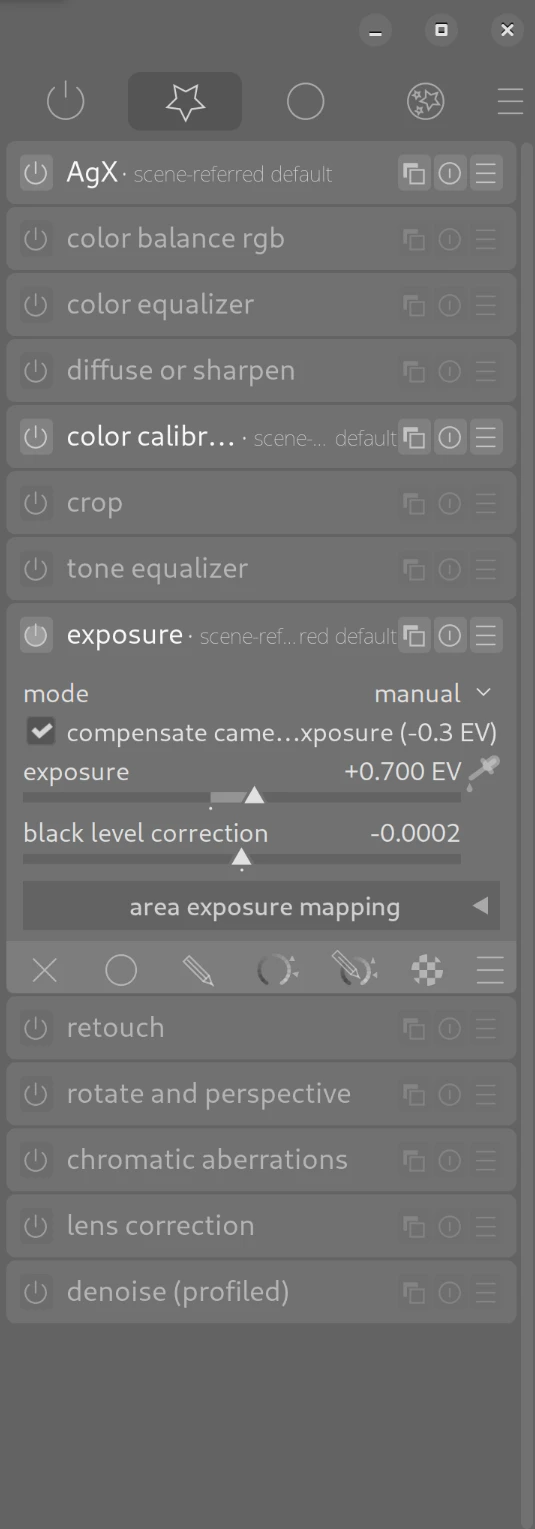
DT-Pro-dark
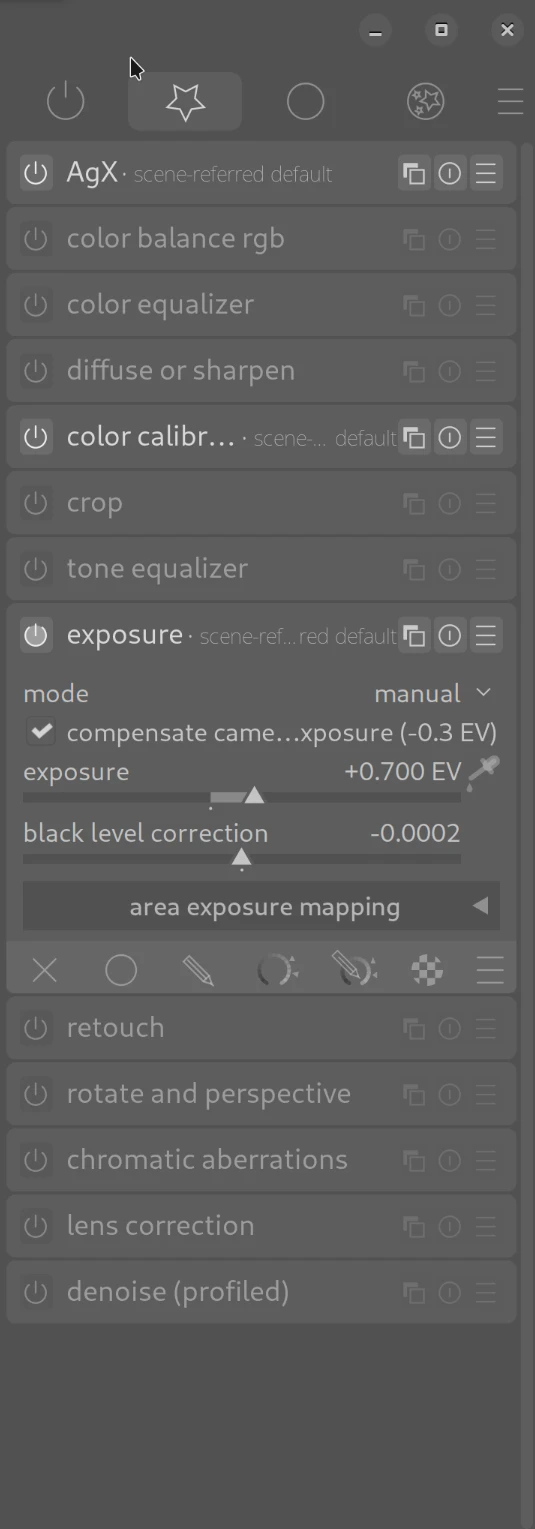
DT-Pro-darker
April 9, 2026
malwarebytes browser guard is blocking the link to the theme download, as suspicious, obviously nonsense but just letting you know, also what is the windows 11 themes location
Thank you very much for your message.
C:\Users\USER-NAME\AppData\Local\darktable\
I’ll update the entry on the page.
Coole Seite, danke dafür.
Eine Kleinigkeit zu den Themes: ich nutze die grey themes, da es sonst zu dunkel ist auf dem Laptop. Oben die Schrift zum Wechseln zwischen lighttable, darkroom und other ist für die inaktiven Tabs leider kaum lesbar.
Sehr gerne und danke für deine Rückmeldung.
Kannst mir bitte einen Screenshot posten?
https://discuss.pixls.us/t/darktable-info-discuss-de-en-nl-fr/55505
for people on Flatpak config folder is actually ~/.var/app/org.darktable.Darktable/config/darktable/
Thank you very much for pointing that out. I have added the information!
Best regards, Chris