



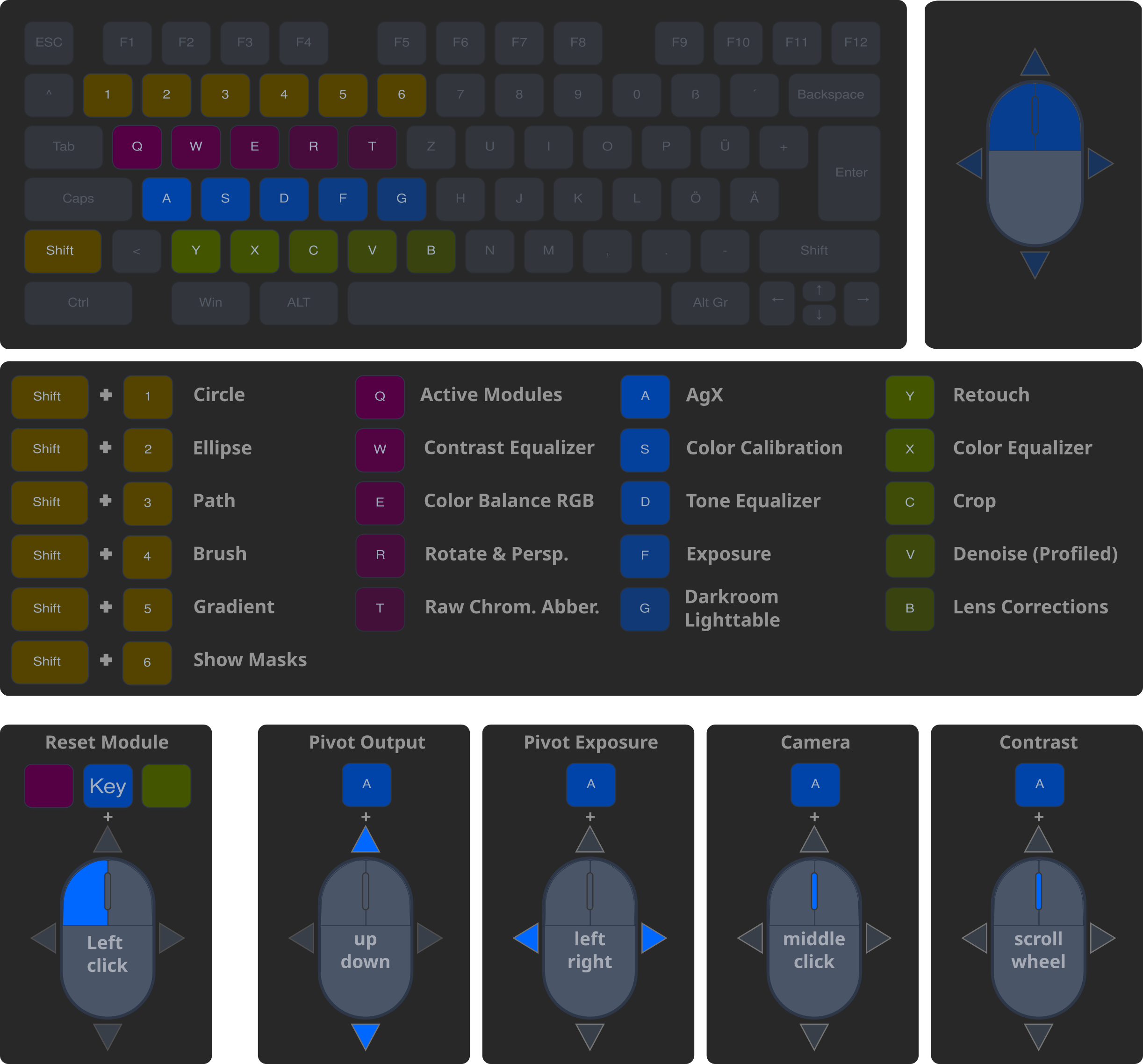
On this page, you will find a compact reference card for the most important keyboard shortcuts and mouse gestures for the Darkroom view.
We have structured the layout logically to make it easier for you to get started:
- Colored Rows: The keys are divided into functional groups (Orange, Blue, Purple, Green).
- Mouse Combinations: Many modules can be controlled extremely precisely by holding down a key while simultaneously moving the mouse or scrolling the mouse wheel.
- Masks: The number row (Orange) is reserved specifically for quick access to mask functions.
The following file contains only the changes for the Darkroom.
(Guide on how to import shortcuts)
Note: R (Reject photo) is now Shift + R
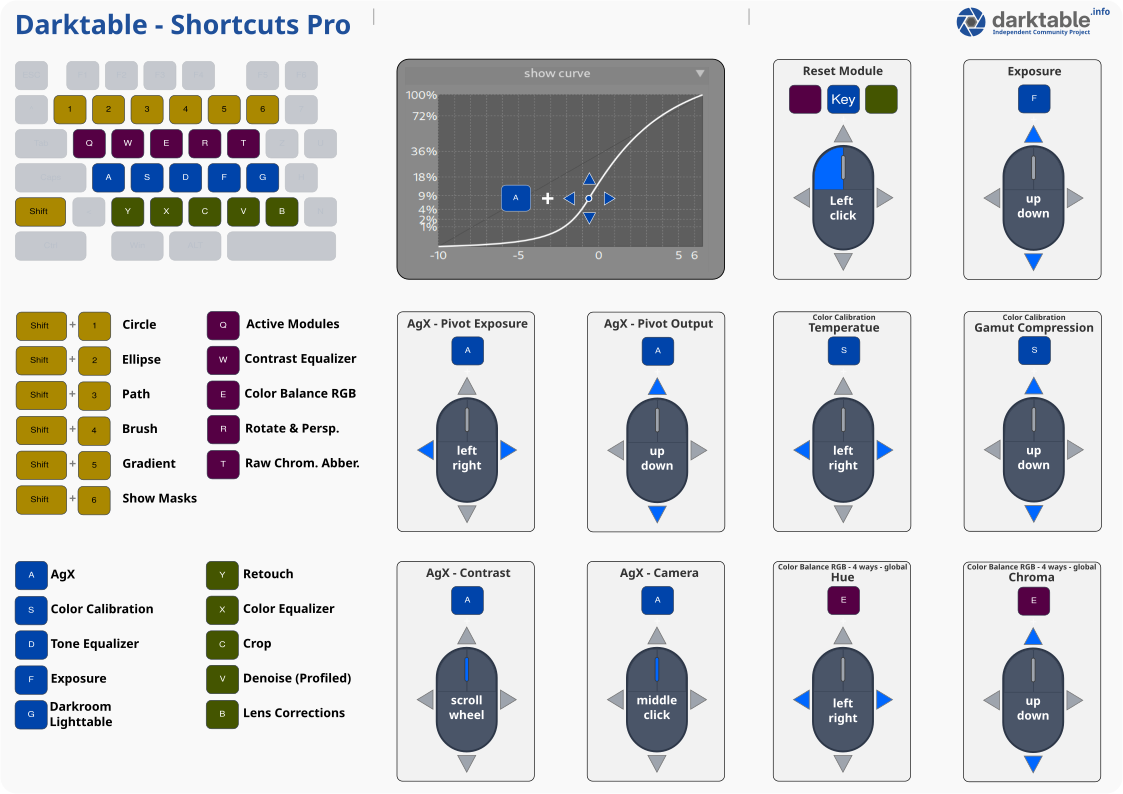
Here is the printable version.
Download: Darktable Shortcuts Pro - Print - PDF
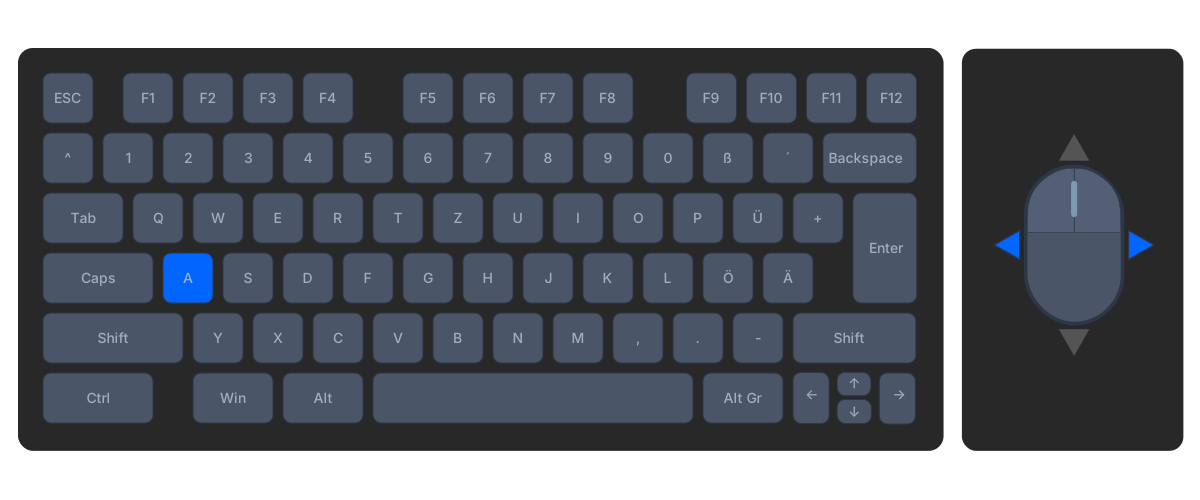
Mouse Gesture Control – Example for using the mouse with AgX.
Hold A + Mouse Y (Mouse up/down)

Hold A + Mouse X (Mouse left/right)
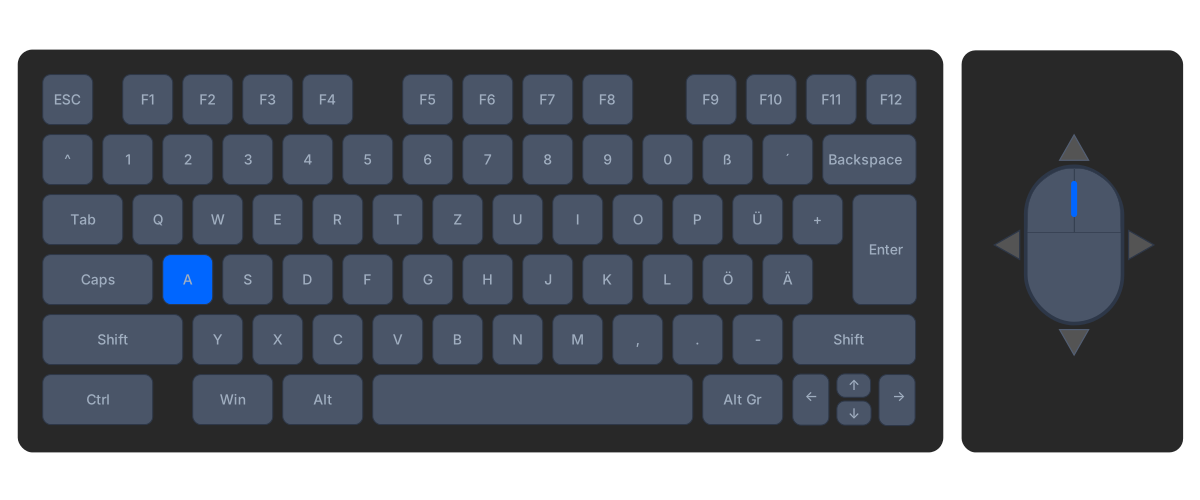
Hold A + Mouse Wheel
Hold A + Hold Left Mouse Button + Move up/down
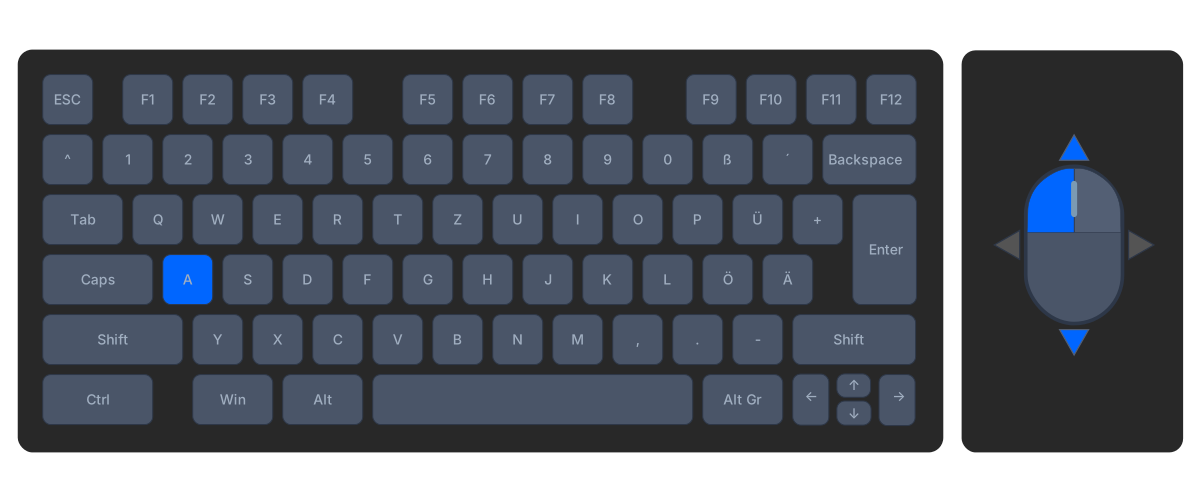
Hold A + Hold Left Mouse Button + Move left/right
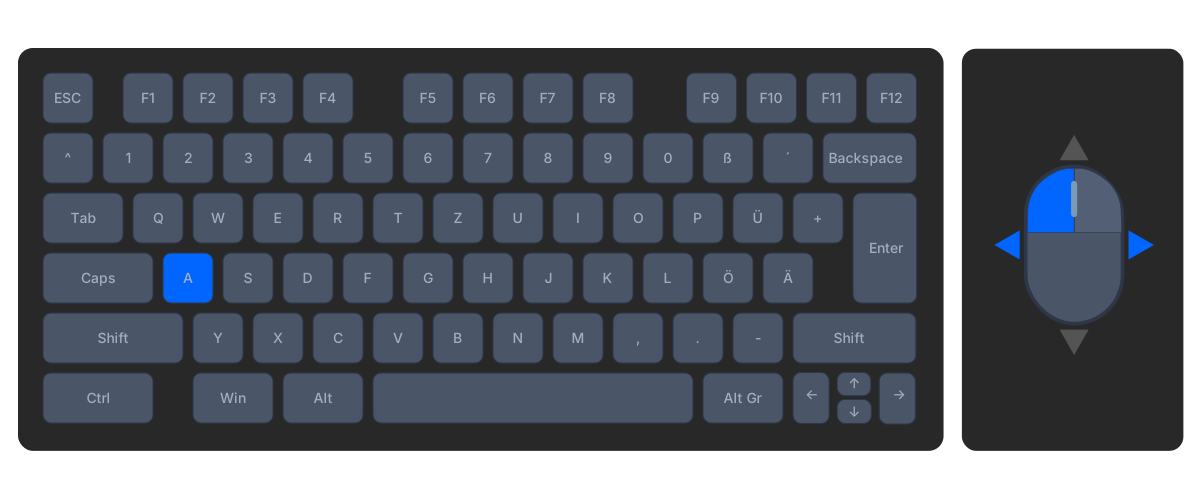
Hold A + Hold Right Mouse Button + Move up/down
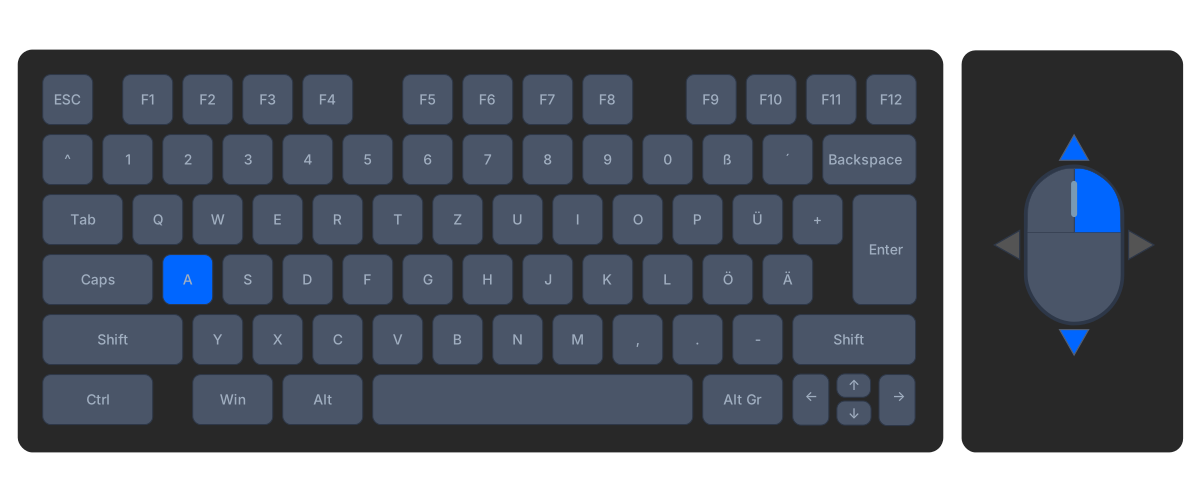
Hold A + Hold Right Mouse Button + Move left/right
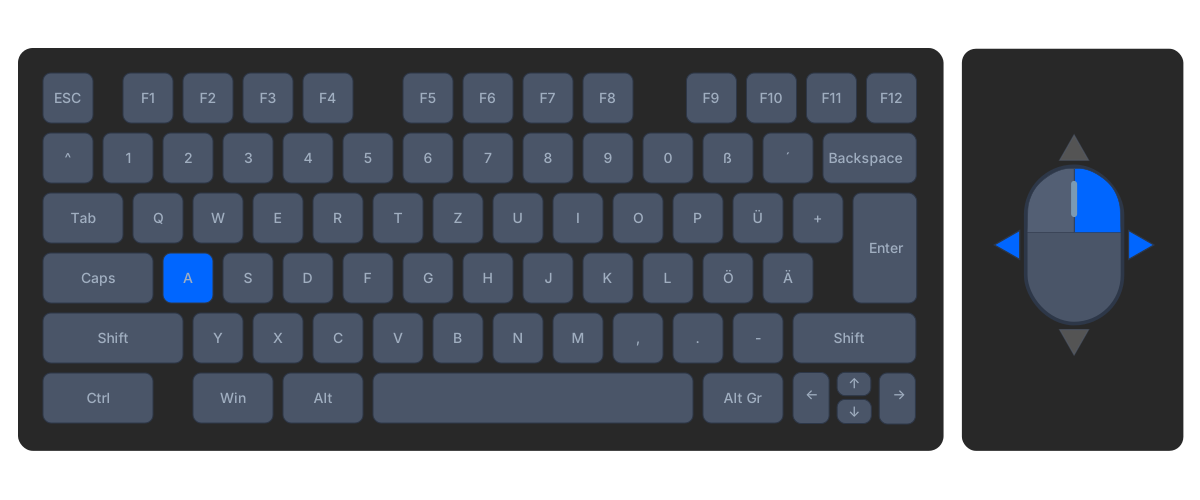

January 11, 2026
I think that the mouse shortcut for AgX pivot input and output are swapped
Thank you for pointing that out. Yes, they are mixed up. I will update the page.
Best regards, Chris
Very useful except in the English language version “D” overrides the default for moving from Lightable to Darkroom. Otherwise excellent.
Hello Andrew,
Thank you for your message, and I’m glad you like it. Actually, the “G” comes from my Lightroom days, but I would have moved it for other reasons as well. ASDF are the most important keys for activating the modules.
Best regards, Chris
Super Arbeit !
Danke dir!
Hi, thanks for creating this useful resource! I have found many mismatches though about the shortcuts:
– Alt-R does not work to reject images (lighttable: “alt+r not assigned”; darkroom: it toggles the “rotate and perspective” module); I actually could not find a way to reject images now, except by using the mouse
– “S”: I am not sure about what it does, a tooltip appears saying “AgX / page: primaries”
– “D” does not toggle tone equalizer but again the rotate and perspective module
– “Q” does not show the active modules but the Sharpen module
– “W” does not show the Contrast Equalizer but the Retouch module
– etc….
Am I doing something wrong here or is the linked shortcut file incorrect/outdated? Thanks!
Thanks for your message!
The error was on our end, sorry.
After retesting the “correct” file, it turns out there’s a bug in DT 5.4 during import.
We’ve therefore temporarily removed the download.