



Rotate and Perspective, for straight horizons and perfect architecture.
What is it about?
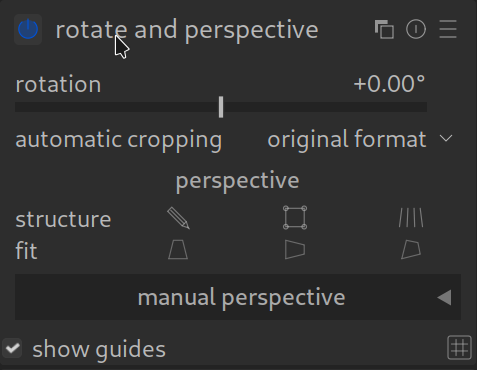
Nothing ruins a good landscape or architectural photo faster than a crooked horizon or converging lines (when buildings seem to “topple” backwards). The “Rotate and Perspective” module is your tool for the geometric correction of the image.
The most important functions:
- Rotation: Corrects a crooked horizon.
- Keystone Correction: Aligns vertical and horizontal lines so that buildings stand straight.
- Automatic Cropping: Automatically adjusts the image after rotation so that no black edges appear.
How to apply it:
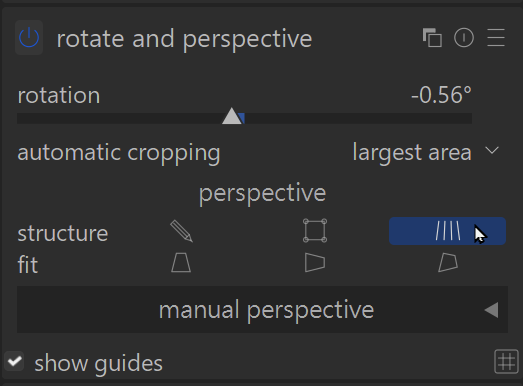
The easiest way is the automatic structure detection.
- Open the module.
- Click on the icon for “Automatically detect structure” (4 vertical lines).
- Darktable analyzes the image for straight lines and aligns it automatically.
- You can manually readjust using the “Rotation” slider.
Pro Tip: Quick alignment via mouse
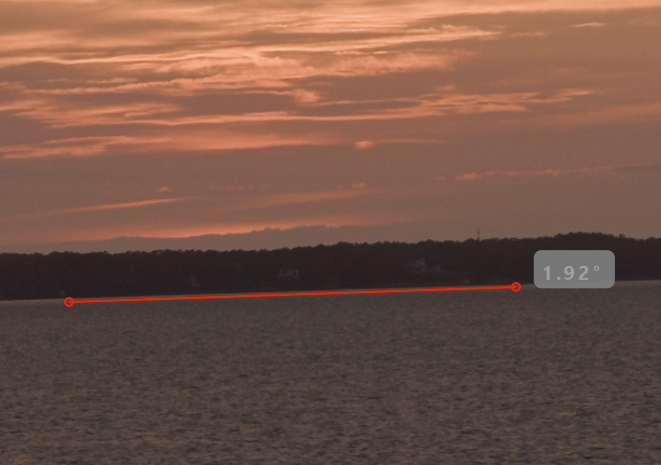
You often don’t even have to open the module to rotate the image: simply hold down the right mouse button in the darkroom and draw a line along the horizon. As soon as you release, darktable rotates the image straight.
Genius: This works just as well for vertical lines! Simply draw the line along the edge of a building or a pole, and darktable aligns the image to it.
For more information, view darktable’s official manual page: “rotate and perspective”
Questions about this topic? Discuss it with us in the forum!
January 27, 2026