



Removing noise made easy
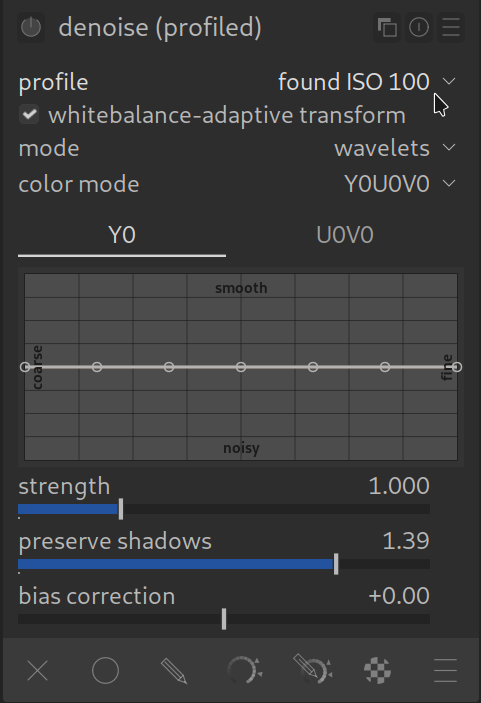
Every photographer knows it: You shoot in low light, have to crank up the ISO, and suddenly the image is colorful speckles, known as grain. That is digital image noise.
Darktable offers one of the most elegant solutions on the market for this: The module Denoise (profiled).
Why “profiled”?
The special thing about this module is that it knows exactly which camera and which ISO value you used.
Every camera sensor produces noise differently. An ISO value of 3200 looks different on a Sony A7 than on a Fujifilm X-T4. The developers of darktable (and the community) have created profiles for hundreds of cameras. So the module looks at the EXIF data of your image, sees “Aha, ISO 1600 with a Nikon D850” and applies exactly the noise reduction that is optimal for this sensor at this sensitivity.
This makes operation extremely simple: In most cases you just have to turn the module on and it works.
How to apply it
You can find the module in the module group Correction (technical group) or via the search (simply type “denoise”).
- Activate: Click on the on/off switch of the module.
- Be amazed: Most of the time the noise disappears immediately without important details becoming mushy.
The most important settings
Even if the automatic mode is great, sometimes you want to intervene manually.
Mode
By default, this is usually set to “Wavelets” or “Non-local means”.

- Wavelets: Is usually the standard. It is fast and good for color noise.

- Non-local means: Is very computationally intensive (slow!), but often delivers even smoother results, especially with very strong noise. If your computer is powerful enough, try this mode.
Strength
The most important slider.
- 1.000: This is the standard value suggested by the profile.
- Less than 1.0: If the image looks too “ironed out” or plastic/posterized, reduce the strength (e.g., to 0.7). A little bit of noise (grain) often makes an image appear sharper and more natural.
- More than 1.0: If noise is still visible, you can carefully increase the value.
Pro-Tip: Denoise shadows
Often noise is more annoying in the dark image areas (shadows) than in the bright ones. You can use the parametric mask to apply denoising only to the dark areas, so that the highlights (and thus often the details in the main subject) remain crisp and sharp.
But don’t worry: The module is already intelligent enough by default to try to protect edges and details.
My profile is not found?
In rare cases (with very new cameras), a message appears that no profile was found.
- Make sure your darktable version is up to date.
- Often the module still works in “generic” mode, but is then not quite as precise.
Summary:
The module Denoise (profiled) is your best friend for high-ISO images. Turn it on, check briefly, done. It is almost always the better choice compared to the other denoise modules in darktable.
Expert Knowledge: The curves in Wavelets mode
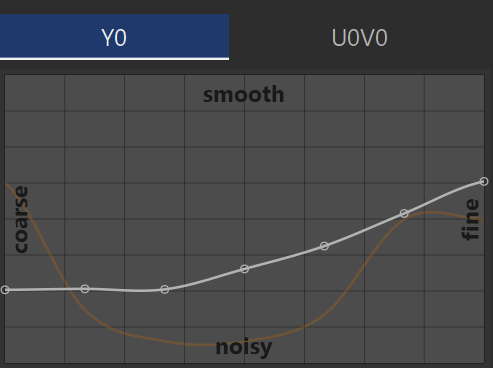
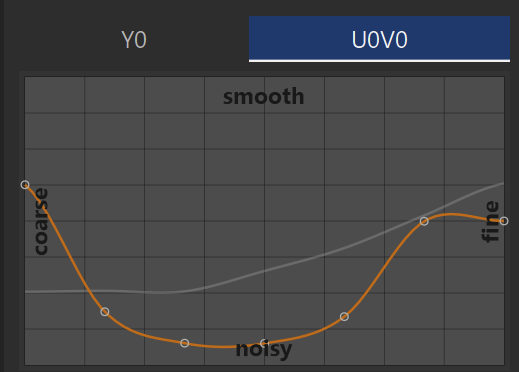
If the mode is set to Wavelets, you see curves.
You see two tabs above the graph:
- Y0 (Luminance): Here you control the brightness noise (the “grain”):
- U0V0 (Color): Here you control the color noise (the colorful speckles):
Tip for experimenting:
Feel free to pull on the curves!
- If you pull the curve up, denoising becomes stronger.
- If you pull it down, more details (but also more noise) are preserved.
- Often it is enough to just raise the U0V0 curve (color) slightly to remove colorful speckles, while leaving the brightness noise (Y0) somewhat “grainy” for more sharpness.
For more information, view darktable’s official manual page: “denoise (profiled)”.
Questions about this topic? Discuss it with us in the forum!
January 27, 2026
“grain” or colorful speckles. Clearer “colorful speckles, known as grain”, with grain in bold font?
Christoph FischerDecember 30, 2025 Reply edit Delete
Thank you, I’ve changed it.