



A good photo is often created by what is left out. The Crop module is one of the most powerful tools for image composition. It helps you remove distracting elements at the edge, bring the main subject into focus, or adjust the format for specific output media (e.g., print, social media, PDF, etc.).
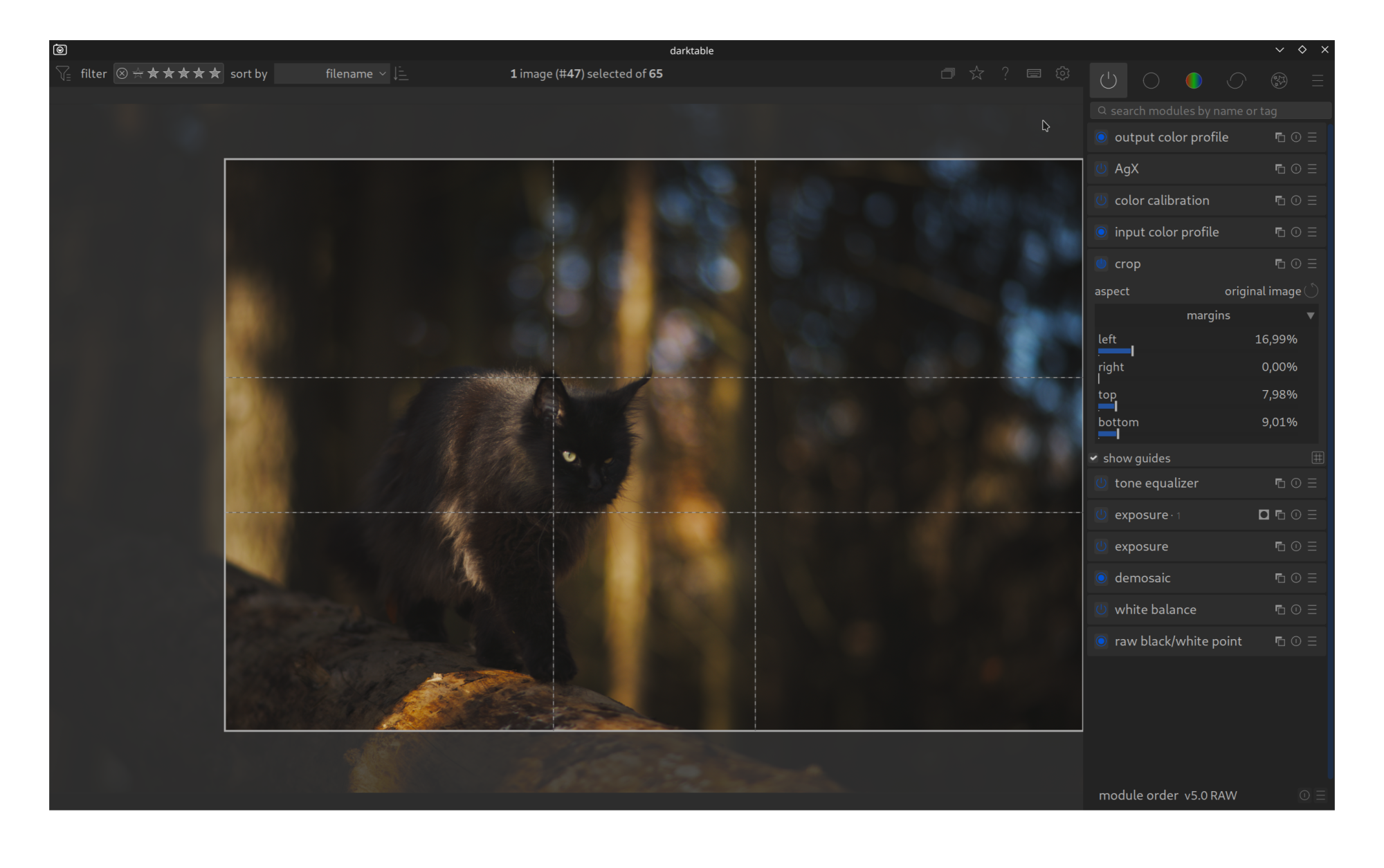
Why crop?
Even with careful shooting, the image framing is rarely perfect.
- Remove distractions: Half a branch or a trash can at the edge of the image distracts the eye.
- Strengthen composition: Moving the subject out of the center (e.g., into the Golden Ratio) makes the image look more exciting.
- Change format: A landscape image often looks completely different as a square or in 16:9 cinema format.
The most important settings
You can usually find the module in the Base group or via the search (“crop”).
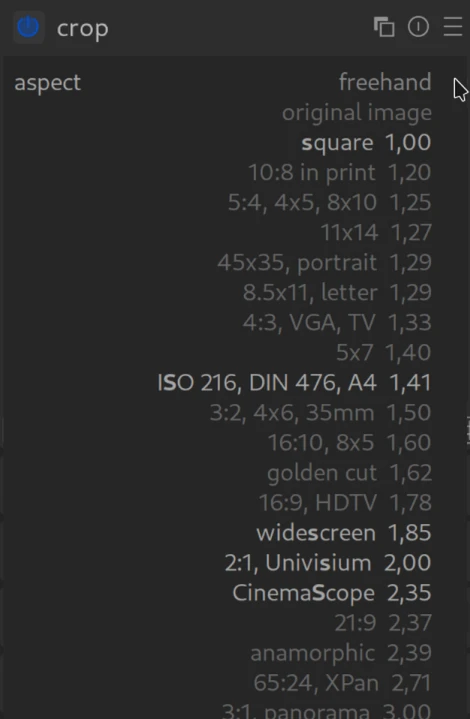
1. Aspect Ratio
Here you define what shape your image should have.
- Original: Keeps the ratio of your camera (usually 3:2 or 4:3). This is safe if you don’t want to distort anything.
- Freehand: You can drag the edges completely freely. Caution: This leads to “crooked” formats that can cause problems when printing.
- Square (1:1): Classic for social media or artistic portraits.
- 16:9: Ideal for display on TVs or monitors.
- Golden Cut: A harmonious ratio often used in art.
- There are many more useful ratio’s offered.
2. Guides
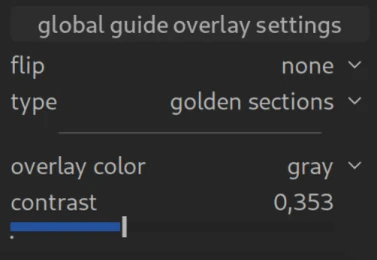
This is perhaps the most useful function for beginners. Darktable overlays lines on the image that you can use for orientation.
- Rule of thirds: The image is divided into nine fields. Place your main subject (e.g., a person’s eye or the horizon) on one of these lines or their intersections. This almost always looks harmonious.
- Golden mean: Similar to the rule of thirds, but slightly more centered and often perceived as even more natural.
- Harmonic triangles: Good for dynamic images with diagonal lines.
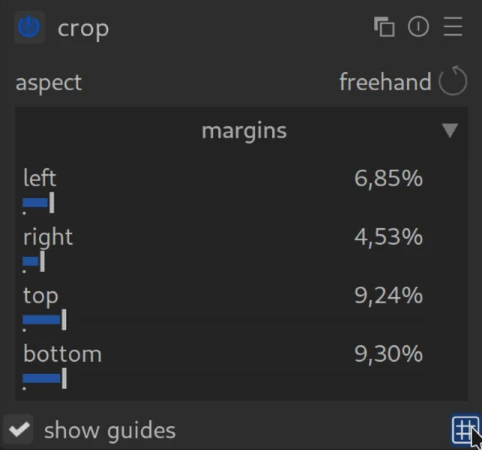
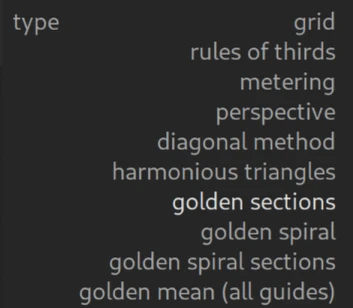
- To the right of “show guides”, you will find a grid icon at the end of the line. Click on the icon and open the “type” drop-down menu. A large selection of different patterns is available.
Operation in the image
As soon as the module is active, you will see a frame around your image.
- Resize: Drag the corners of the frame to make the section smaller or larger.
- Move: Click in the center of the frame and hold the mouse button to move the section.
- Confirm: To see the result without the frame, simply collapse the module (click on the module header) or switch to another module.
Important to know: Nothing is lost
Darktable works non-destructively. This means: If you cut something off, the pixels are not deleted. They are just hidden. You can open the module again at any time later and correct the section or restore the original.
Tip: Center crop
If you move the handles directly in the image with the mouse while holding down the Shift key, the section remains centered. This is particularly helpful if you already have the subject in the center and only want to tighten the frame without moving the position.
For more information, view darktable’s official manual page: “crop”
Questions about this topic? Discuss it with us in the forum!
January 27, 2026