



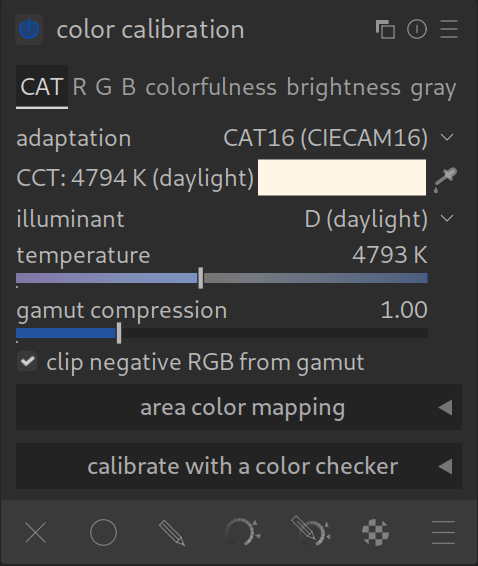
Color Calibration is the modern tool for perfect white balance and correct colors.
In the modern workflow, this module replaces the creative work of the old White Balance module.
- Old White Balance module: Always remains on “Camera reference” (technical basis).
- Color Calibration: Here you set how warm or cold the image should appear (creative part).
Why the switch? This module uses a technique called CAT (Chromatic Adaptation Transform). Simply put: It calculates colors the way the human eye perceives them in different light. This leads to more natural skin tones and prevents strange color shifts in very bright areas.
The Most Important Tabs & Functions
1. “CAT” Tab (Chromatic Adaptation)
You will spend 99% of your time here. This is your new white balance.
- Illuminant (Light source): Here you can choose presets (e.g., “Daylight”, “Shadow”, “Incandescent”).
- Tip: “As Shot” adopts your camera’s setting.
- Color Picker (Color from area): The most important tool!
- Click the dropper icon.
- Draw a rectangle in the image over an area that should actually be neutral gray or white (e.g., a gray wall, a white T-shirt).
- The module removes the color cast automatically.
2. “R” / “G” / “B” Tab (Channel Mixer)
This is for advanced users. Here you can define how the camera colors (Red, Green, Blue) are mixed.
- Application: Often used for black and white conversions (there is a “b/w film” preset for this) or to correct extreme color casts from cheap LED lights that normal white balance cannot handle.
3. “Brightness” Tab
Allows brightness correction during color adjustment. Usually, it is better to do this in the Exposure module, but sometimes it helps here to see if a color cast is only in the shadows.
4. “Colorfulness” Tab:
Here you can control brightness and saturation based on color channels. This is one of the best tools in darktable for high-quality black and white conversions.
5. “Gray” Tab:
This tab is used to computationally find a neutral gray balance based on the current channel mixer settings.
Workflow Tip: If the Colors Look “Weird”
Sometimes colors look strange after activating this module. This is often because the old “White Balance” module is not set to “Camera reference”.
Checklist:
- Check White Balance module: Is it set to “Camera reference”?
- Activate “Color Calibration” module.
- Click on a neutral area with the color picker in the “CAT” tab.
Special Case: Artificial Light
With difficult artificial light (street lamps, cheap LEDs), normal white balances often fail. Color Calibration has a “superpower” here:
- It can compress the Gamut. This prevents, for example, blue LED light from turning into an unnatural, flat mush. (Found under advanced settings, if needed).
Summary
- Use this module instead of the slider in the White Balance module.
- The CAT tab is your main tool.
- Use the Color Picker on neutral areas for quick results.
- Reset is your friend – don’t worry about making mistakes, just use the reset features.
For more information, view darktable’s official manual page: “color calibration”.
Questions about this topic? Discuss it with us in the forum!
January 27, 2026
First thing I do is searching with the color picker (right tab) for a neutral color (RGB values are shown) and then use the same spot for adjusting the white balnace with the color picker from the color calibration module.
what to do when you get (invalid) here?
Reset withe balance.