



The preferences for darktable are accessed by clicking on the gear icon near the top right corner:

When you are in the Lighttable, the preferences for the Lighttable are already available:
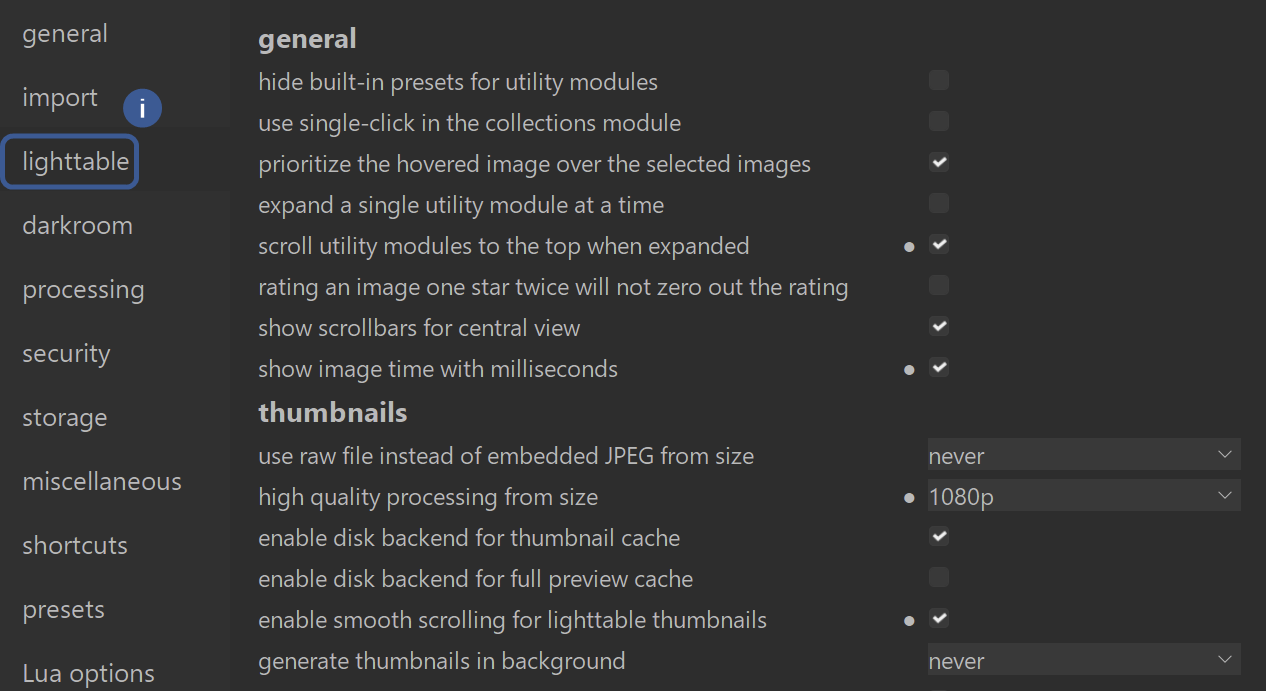
The preferences for the Lighttable are divided into two main categories: “general” and “thumbnails”.
General
- hide built-in presets for utility modules:
When enabled, the default presets supplied with darktable are hidden in the modules. This makes the lists clearer if you only want to use your own. - Use single-click in the collections module:
Normally, you open folders in the collections module with a double-click. Now, a single click is sufficient. - prioritize the hovered image over the selected images:
(Important!) If, for example, you have marked 5 images in red, but are hovering with the mouse over another (sixth) image and press a key (e.g., “1” for a star):- Enabled: The star only appears on the image under the mouse.
- Disabled: The star is assigned to all selected images.
- Expand a single utility module at a time:
Keeps the sidebars tidy. When you expand one module, another one automatically collapses (accordion effect). - scroll utility modules to the top when expanded:
When you open a module, the bar automatically scrolls so that this module is at the top. This saves you from having to scroll manually. - Rating an image one star twice will not reset the rating:
Normally, pressing once equals one star. Pressing again equals zero stars (delete). This option prevents accidental deletion of the rating when pressing a second time. - show scrollbars for central view:
Displays scrollbars on the right and bottom of the central area (where the images are). - show image time with milliseconds: Also
displays the milliseconds in the image timestamp. This is very useful for continuous shooting to see the exact sequence.
Area: Thumbnails (preview images)
- Use raw file instead of embedded JPEG from size:
Cameras store a small JPEG in the RAW file. Darktable uses this for quick previews.- Never: Always use the fast, embedded JPEG (fastest option).
- Other options would force darktable to actually develop the RAW once the preview image exceeds a certain size (looks better, but is slower).
- high quality processing from size:
From what preview image size (here 1080p) should darktable use a higher quality (but slower) algorithm for calculation? - enable disk backend for thumbnail cache:
Stores the small preview images permanently on the hard disk. This makes restarting darktable much faster, as not everything has to be reloaded. (Should be enabled). - enable disk backend for full preview cache: Also
stores large full-screen previews on the hard disk. This makes zooming in the light table extremely fast, but uses a lot of storage space (several gigabytes). - enable smooth scrolling for lighttable thumbnails:
Makes scrolling through the image gallery “smooth” and animated, instead of jumping jerkily line by line. Feels more modern. - generate thumbnails in background:
Determines whether darktable should calculate thumbnails while you are not doing anything. “Never” saves CPU power, but means that images will only load when you scroll to them.
For more information, view darktable’s official manual page: “Preferences & Settings > lighttable”.
Questions about this topic? Discuss it with us in the forum!
January 27, 2026