



Collections and Collection Filters
The module collections is the most flexible way to select and sort your images. The most common methods are “film roll” (import date) and “folders”. But just as easily, you can create collections based on keywords, cameras, lenses, ISO values, or the print date. Or you just combine everything you need.
The goal is simple: collect and find your pictures exactly how you want them. You can also save your complex searches as a preset to reuse them later.
How to use it
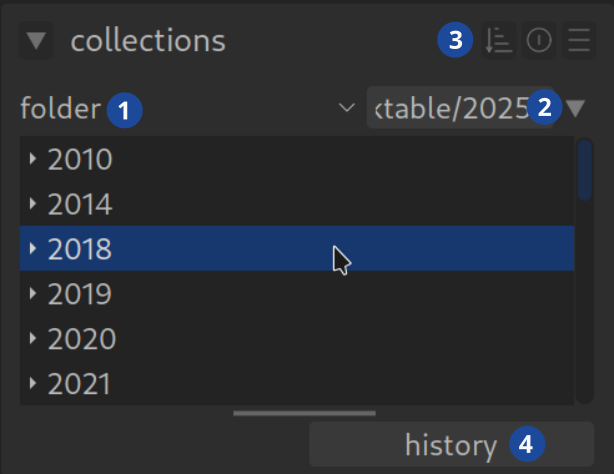
In the upper field (1) you select the attribute (folder). The list is long! “film roll” and “folder” are the classics. As soon as you have chosen an attribute, you will see the appropriate values in the field below (e.g. your folder names). These values are often grouped (e.g. by year) – one click opens the group.
As soon as you click on a value, it appears in the field next to it (2) as an active filter. You can also enter filters manually or load them via presets.
A click on “History” (4) creates a dropdown list of the last filters used – very convenient to jump back quickly. It’s best to play around with it a little to get a feel for it. Note: If you have activated the “recently used collections” module, the “history” dropdown does not appear.
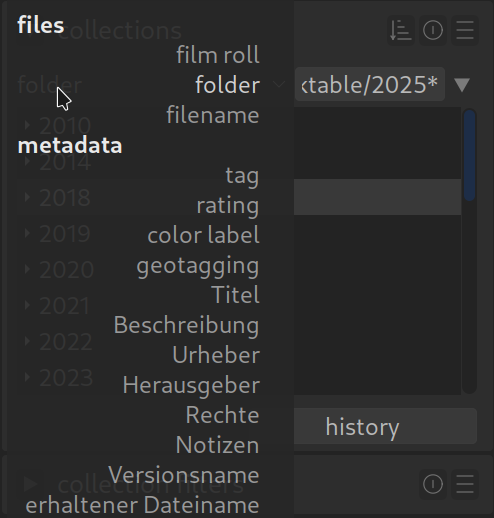
Advanced use (combine rules)
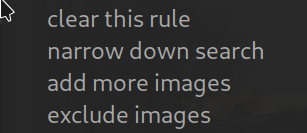
Once you have set your base filter (criterion 1), you can refine your selection (criterion 2, or more criteria). To do this, click on the small triangle to the right of the values field (2).
Darktable then asks you how you want to apply the additional filter:

narrow down (and): Only show pictures that meet both criterion 1 AND criterion 2.

add more (or): Show pictures that meet either the first OR second criterion.

exclude (but not): Show everything from criterion 1 BUT NOT those in criterion 2.
The possibilities are endless. Example: Combine the “Folder” filter with the “Camera” attribute to only see smartphone photos from a specific vacation. Or find all the pictures between 2010 and 2015 taken with your full-frame camera and have the tag “Great Britain”.
Save your search as a preset
If you have put together a complex search, click on the “Hamburger Menu” (three lines) to the right of the input field (3) and select “Save new preset”. Done!
When folders or movie rolls “disappear”
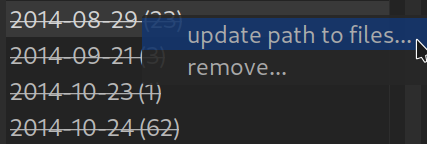
Sometimes darktable shows folder or movie role names crossed out. This is the sign that you moved or renamed the folder outside of darktable and the program can’t find it.
The solution: Right-click on the crossed-out name -> “Search for a film roll…” (update or update path). Show darktable the new location and everything is back.
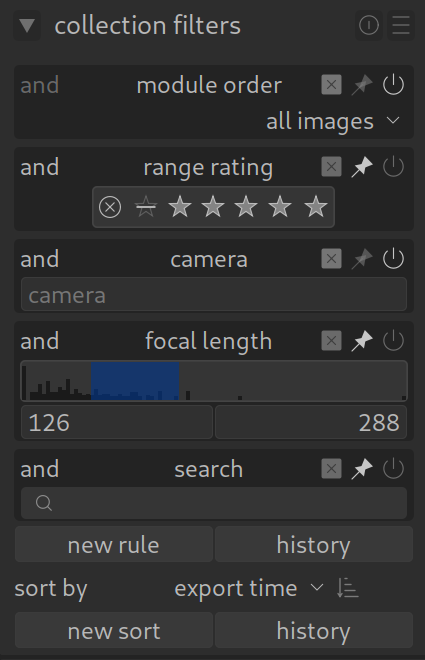
Even more powerful: The “Collection Filters”
In addition to the “Collections” module, there is the module Collection Filters. The advantage here: It offers graphic buttons (“widgets”) for star ratings, camera, focal length, color markings and many more.
You can combine these filters with the rules from the “collections”. Many users pin filter items from this module which puts the filter in the upper bar to always have quick access to certain pictures (e.g. “Show 5 star images”, or “Show red-labeled images”).
Activate the “Pin Needle” :

For more information, view darktable’s official manual page: “collections” and “collection filters”.
Questions about this topic? Discuss it with us in the forum!
January 27, 2026