



The First Import
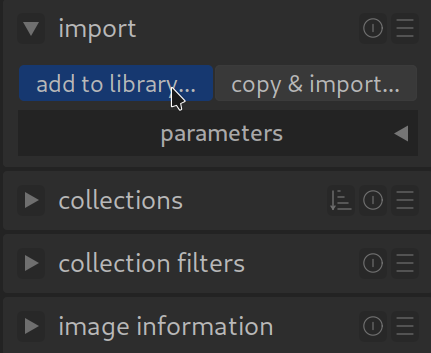
The first view in darktable (DT) is the Lighttable, it serves for managing and culling your images.
To add your photos, you will find the menu for importing at the top left.
There are two options:
- add to library…
- copy & import…
Add to library is used to import an existing collection.
Copy & import is used to import photos (from a camera for example) and copy them into a collection folder.
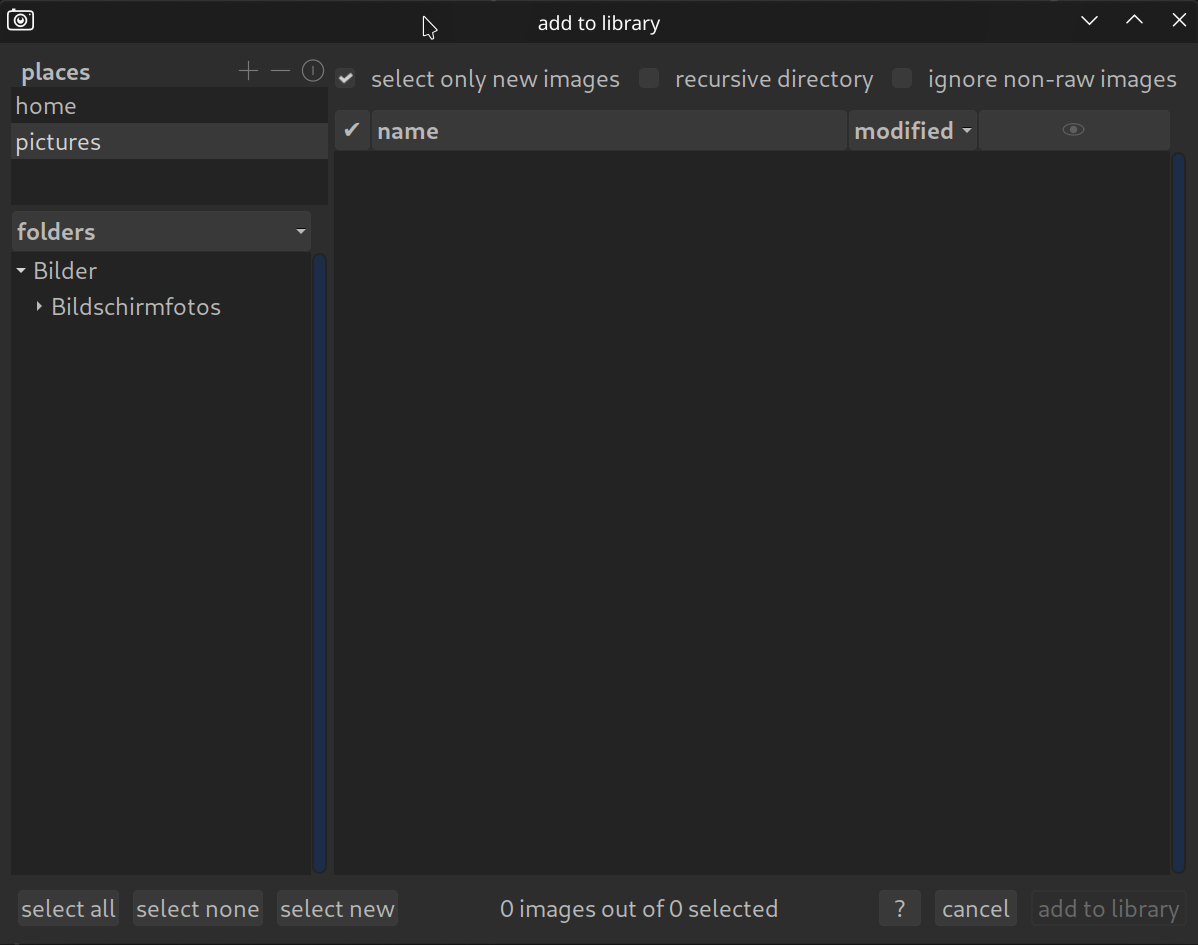
Before proceeding with the import, a brief word on how DT “handles” your photos. During import (& copy) the database is filled with storage location data and additional information, such as EXIF data.
At the same time, DT creates (unless set otherwise in preferences) sidecar XMP files. These serve, among other things, as a “backup” for editing and further information. If the database is damaged, all data (for the database) can be restored using the XMP sidecar files.
Important: DT is a non-destructive image editor; your image files are never directly modified! You can export them later with your edits applied.
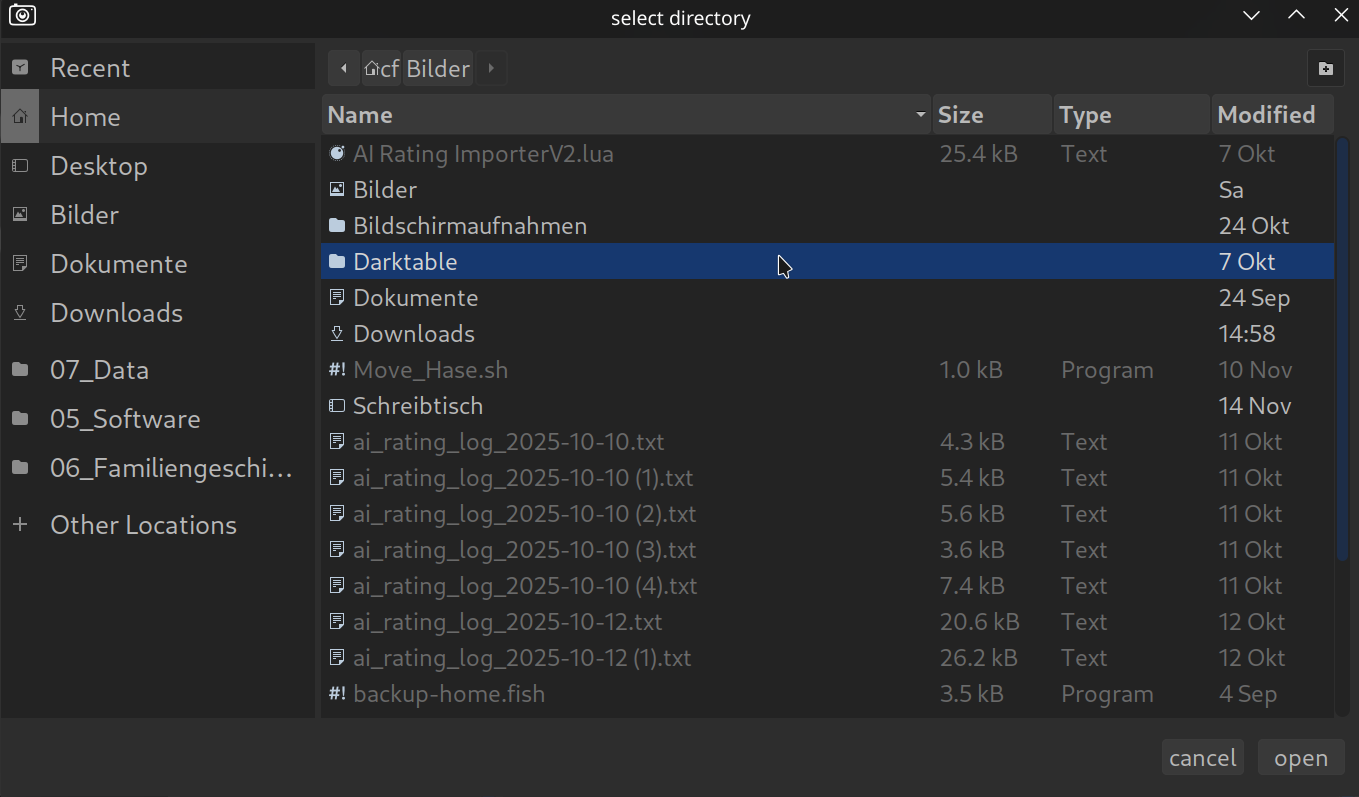
If the location of your photos is not listed, click on the “+”, the following view opens:
Confirm the folder containing your collection with “Open“.
This adds the folder with your collection to the locations.
If your collection is organized in subfolders, activate “recursive directory”. If you (like me) do not want to manage or edit your JPEG photos with DT, also activate “ignore non-raw files”.
Start the import with “Add to library“.
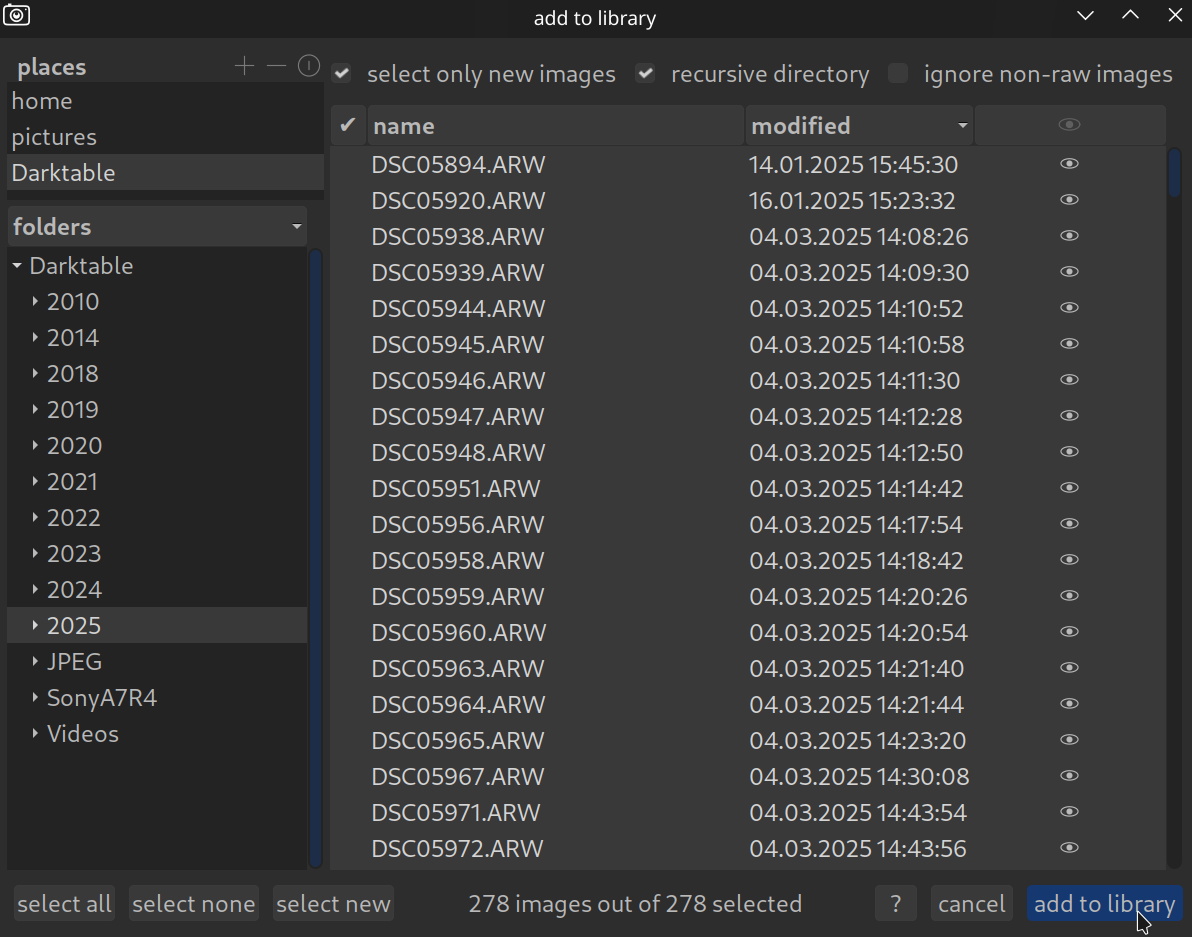
DT now displays your photos in the Lighttable.

Drag‑and‑drop “add to library” in darktable
What drag‑and‑drop does
- You can drag photos or folders from your file manager directly into the lighttable window.
- darktable treats this the same as using add to library… (see above).
- Your files stay where they are on your computer; darktable just adds them to its library.
- If there is an XMP file with the image in the same folder, the edits are applied on import.
When it works
- Works on most desktop environments where drag‑and‑drop is supported.
- Works for both single images and whole folders.
- Works the same as choosing a folder manually in the import panel.
When it may not work
- Some setups block drag‑and‑drop into darktable.
- If darktable shows a 🚫 symbol when dragging, your system is blocking the action.
What to do if it fails
- Try using the add to library… button instead.
- Check if your desktop environment has known drag‑and‑drop issues.
- Make sure the folder or file isn’t restricted or protected by the operating system.
For more information, view darktable’s official manual page: “import”.
Questions about this topic? Discuss it with us in the forum!
February 5, 2026