



Darktable never alters your original RAW files. All edits, tags, ratings, and preferences are stored separately. To fully protect your work, you must back up both your photos and the files where darktable stores edits and settings.
Darktable data falls into two categories: 1) Digital Asset Management (DAM) and Global Preferences.
1. Digital Asset Management (DAM)
XMP Sidecar Files (see “Deep Dive with DAM” below for more in-depth options)
- What they are: small text files with per‑image edit history, tags, ratings, etc., with the same name as your image, but with the extension
.xmp(e.g.,IMG_1234.CR3.xmp) containing - Where they are: Right next to your RAW photo in the same folder.
- Backup strategy:
- Make sure the preference for XMP file is properly set (see “Pro Tip” below).
- Never delete these files.
- If you copy your photos to an external hard drive, always copy the XMP files along with them.
- Pros:
- XMP files are continuously updated with each edit, so these files have the most recent up-to-date edits.
- You can easily restore the edits from one image to the entire collection (preferences -> storage > look for updated XMP files on startup).
- Even if you have to reinstall darktable, as long as you have the folder with the RAWs and XMPs, your entire collection can be 100% restored.
- Cons:
- If
library.dbis lost, it takes longer to restore an entire library of edits because file paths must be rebuilt.
- If
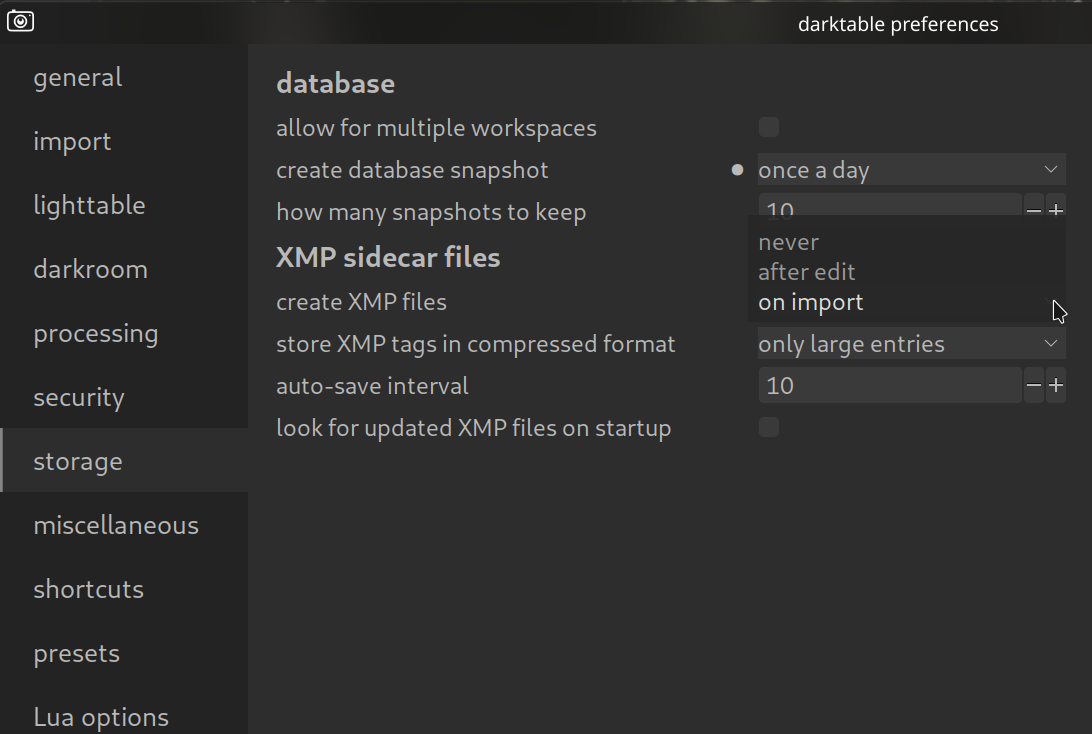
Pro Tip: Check the settings under Storage to see if the option to write sidecar files is enabled. It is highly recommended that you select either “on import” or “after edit”.
2. Global Preferences
- Key Files:
data.db– main database filedarktablerc– main configuration fileluarc,shortcutsrc,user.css, etc. – various user files
- Backup strategy:
- Enable snapshots (discussed in “Deep Dive” below)
- Create a backup plan for the entire folder (see “Storage Locations” below).
- Risk of loss: Without the database or configuration files backed up, you might lose important UI configurations and painstakingly created presets or styles that you haven’t applied to images yet.
3. Your “Pro” Configuration (Themes & Shortcuts)
Have you set up darktable perfectly with our themes and shortcuts? These settings are stored in configuration files (darktablerc, keyboardrc, etc.). If you have customized darktable in preferences, with themes, shortcuts, etc., you’ll want to keep these files.
Storage Locations (where files are kept)
Depending on your operating system, you can find the configuration and database folder here:
- Windows:
C:\Users\[YourName]\AppData\Local\darktable\
(Note: The AppData folder is often hidden. Type%localappdata%\darktableinto the Explorer address bar). - macOS:
~/.config/darktable/ - Linux:
~/.config/darktable/
The Standard Workflow Backup Strategy
To be on the safe side, follow these two steps:
- Photo Backup (RAWs + XMPs):
- Regularly back up your photo folders.
- Ensure .xmp files are included—that’s where the actual edits are.
- System Backup (darktable’s configuration folder):
- Regularly copy the entire
darktablefolder mentioned above (from AppData or .config) to a safe location. - This preserves the databases (
library.db,data.db, snapshots), your shortcuts, your themes, and your personal preferences.
- Regularly copy the entire
Deep Dive with DAM
Besides XMP files, darktable saves every step of your editing history, EXIF and IPTC data, ratings, tags, etc. in the library.db database file.
library.db File
- What it is: Contains image locations, edit history, EXIF/IPTC metadata, tags, ratings, and other library information.
- Where it is: See “Storage Locations” above.
- Backup strategy:
- Enable database snapshots (preferences → storage → create database snapshots) choose how often you want snapshots made and how many copies to keep
- snapshots are kept in the same folder as the
library.dbfile and are named with the date and time of the snapshot:library.db-snp-20251221123856(see “Storage Locations” above). - Note: this also creates
data.dbsnapshots.)
- snapshots are kept in the same folder as the
- Make regular backups of the database folder (see “Storage Locations” below).
- Enable database snapshots (preferences → storage → create database snapshots) choose how often you want snapshots made and how many copies to keep
- Pros:
- Easily restore all image edits in one action by simply restoring one database file.
- It contains information concerning file locations.
- Cons:
- Image edits stored in the database and snapshots may be older than XMP files.
- Large image collections create large database files, therefore large snapshot files; keep an eye on your disk space.
For more information, view darktable’s official manual page: “storage”.
Questions about this topic? Discuss it with us in the forum!
February 3, 2026