



The Manual Solution
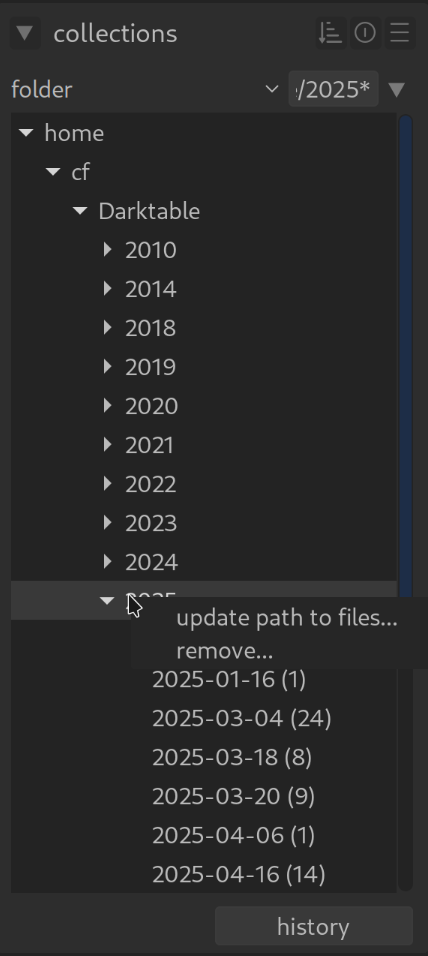
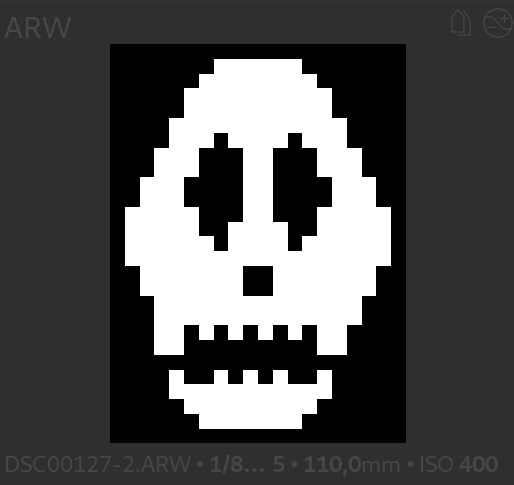
The skull icon simply means that darktable has an entry in its database, but cannot find the file at the stored path.
Scenario A: The file no longer exists (Cleanup)
You have intentionally deleted the image (e.g., in Explorer/Finder) and now want to remove the orphaned entry from darktable:
- Select the image (or images) with the skull icon.
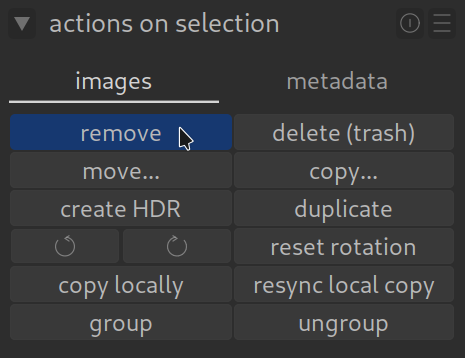
- Open the “selected images” module in the right panel.
- Click on “remove”.
Note: Since the file is physically no longer found, this only cleans up the darktable database.
Scenario B: The folder was moved
Are all images in a folder showing a skull icon because you moved or renamed the folder on your hard drive? Then do not delete them!
- Right-click on the affected folder name in the left panel.
- Select “search filmroll…”.
- Select the new location of the folder in the dialog. Darktable will then update the paths for all contained images.
Do you have (many) orphaned entries scattered across your entire library?
Then continue to the next section.
If you installed darktable with the standard extensions, the solution to the “skull problem” is already slumbering on your hard drive. You just need to activate it.
The Automatic Solution
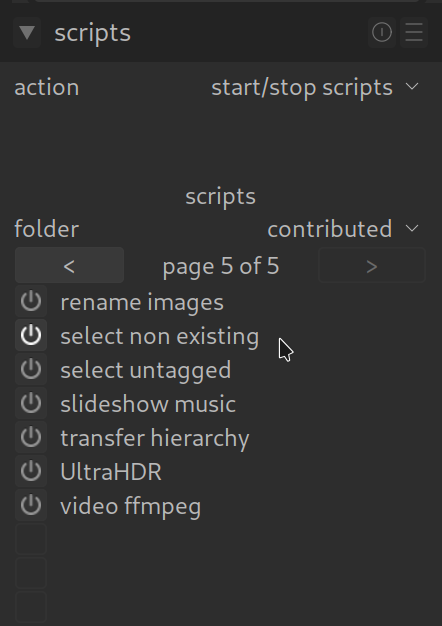
Step 1: Enable the Script
There are two ways to do this, depending on how you have set up darktable:
- Method A (Via Script Manager):
If you see the “Script Manager” module on the left in the lighttable view: Click on it, go to contrib, and click onselect_non_existingto start it. - Method B (Manually):
Open theluarcfile in your darktable configuration folder (usually~/.config/darktable/luarc) and add the following line:require "contrib/select_non_existing"
Restart darktable afterwards.
Step 2: Find the Ghost Images
Once the script is active, you have a new superpower in the select module (on the right in the lighttable):
- Go to the select module on the right.
- Click on the dropdown menu (it says “all” by default).
- Choose the new option: “select non existing”.
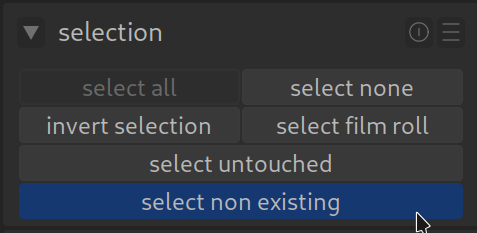
Darktable will now check your database and automatically select all images that are physically no longer present. You just have to click the remove button, and your catalog is clean again.
For more information, view darktable’s official manual page: “thumbnails: skulls, question marks, and warning triangles”.
Questions about this topic? Discuss it with us in the forum!
February 3, 2026