
January 1, 2026
Sometimes you get carried away while editing: the colors look strange or the contrast is much too strong. Instead of spending a long time searching for the error, it is often easier to reset the module to its initial state.
Here are three ways to reset modules or individual values in Darktable.
1. Reset the entire module (the standard method)

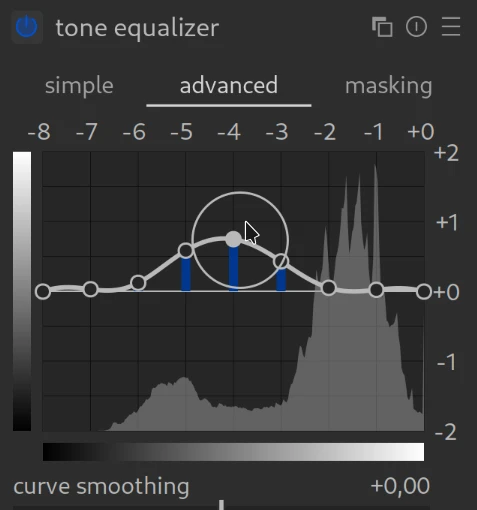
Each module has a series of icons in its header (to the right of the module name).
Find the icon that looks like a circle with a vertical line inside it (similar to an on/off switch).
You have two options:
- Clicking on it resets all controls in this module to their darktable default values.
- [Ctrl]+clicking will reset all of the controls in the module to any automatically applied setting you have created for this module.
Please note: Doing either of these options will delete all settings you have made in this module while editing—including the masks!
2. Reset individual controllers
If you don’t want to correct the entire module, but only a single value (e.g., only the saturation):
- Double-click on the slider or the name of the slider.
- The controller immediately jumps back to its default value.
- This also works for curves.
3. Alternative: The history stack
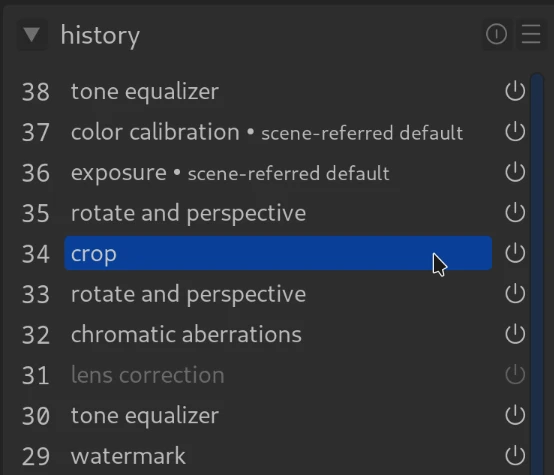
If you want to undo several steps at once (e.g., the last 5 changes):
- Go to the left side of the history stack.
- Find the entry before the error.
- Click on it.
- If you make a new change now, all steps above it will be overwritten.
Brief summary:
- Reset icon (circle with line): Everything in the module will be reset to either default or auto-applied values.
- Double-click on the slider: Only this one value will be reset.