December 20, 2025
If you have installed Darktable with the standard extensions, the solution to the “skull problem” is already dormant on your hard drive. You just need to activate it.
Step 1: Enable the script
There are two ways to do this, depending on how you have set up Darktable:
- Method A (Via Script Manager):
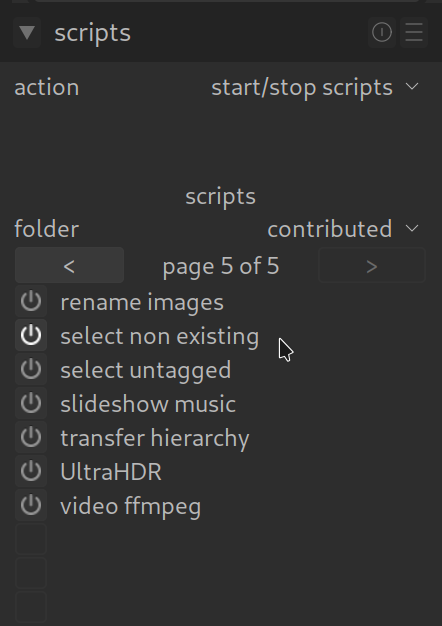
If you see the “Script Manager” module on the left side of the lighttable: Click on it, go to contrib and click onselect_non_existingto start it. - Method B (Manually):
Open theluarcfile in your Darktable configuration folder (usually~/.config/darktable/luarc) and add the following line:require "contrib/select_non_existing"
Restart Darktable afterwards.
Step 2: Find the ghost images
Once the script is active, you have a new superpower in the Select module (on the right side of the lighttable):
- Go to the Select module on the right.
- Click on the dropdown menu (it says “all” by default).
- Choose the new option: “select non existing”.
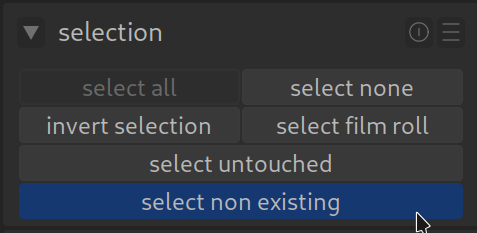
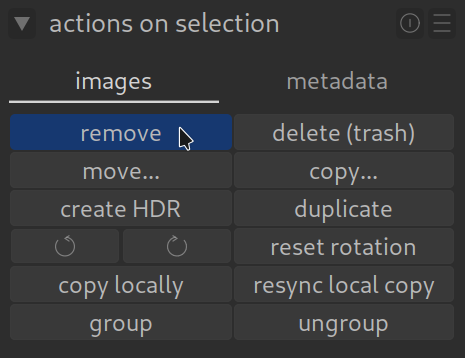
Darktable now checks your database at lightning speed and automatically selects all images that no longer physically exist. You just have to click remove, and your catalog is clean again.