
December 6, 2025
Where Darktable stores your work and what you need to back up.
Darktable works non-destructively. This means: Your original image (RAW) is never modified. All edits, tags, and ratings are stored separately. To ensure your work is safe, you need to understand where this data is located.
1. The most important rule: XMP files are sacred
Darktable saves every step of your editing in a small text file that has the exact same name as your image, but with the extension .xmp (e.g., IMG_1234.CR3.xmp).
- Where are they? Right next to your RAW photo in the same folder.
- What to do? Never delete these files! If you copy your photos to an external hard drive, always copy the XMP files along with them.
- The benefit: Even if your computer explodes and you have to reinstall Darktable – as long as you have the folder with the RAWs and XMPs, your entire edit is 100% restored.
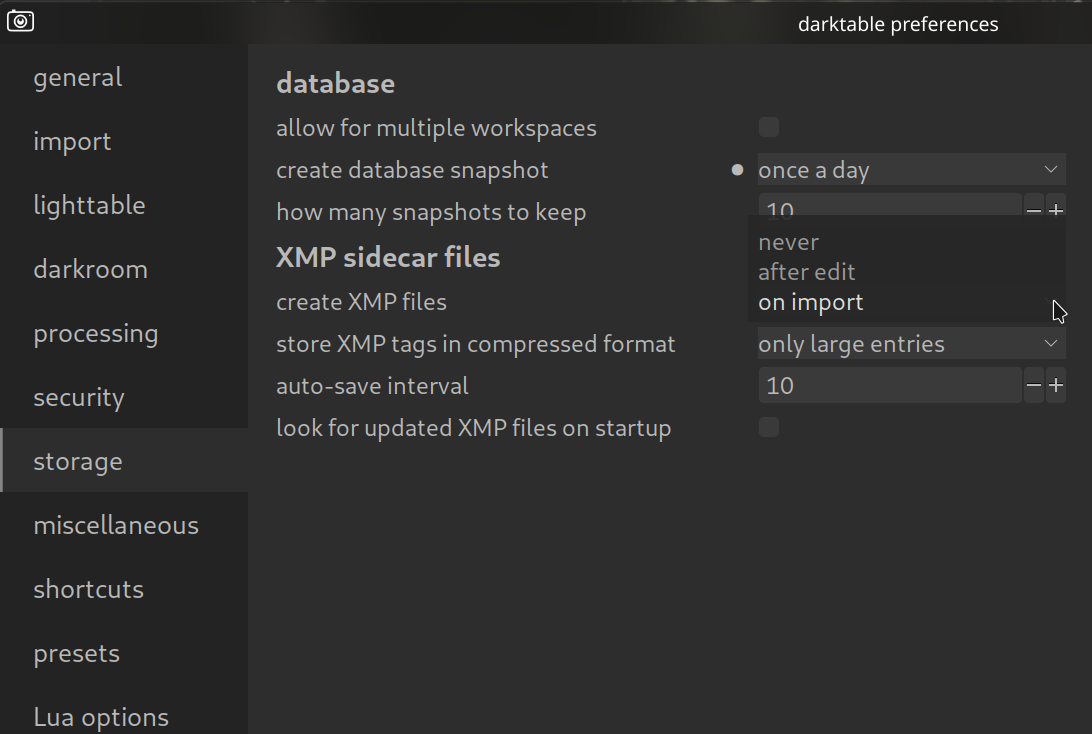
Pro Tip: Check the settings under Storage to see if the option to write sidecar files is enabled. It is highly recommended that you select either “on import” or “after edit”. This is your most important backup.
2. The Database (The Library)
In addition to the XMP files, Darktable maintains a central database (library.db and data.db). This contains information that spans across images or enables fast search queries.
- Do I need to back this up? Yes, but it is less critical than the XMP files. If the database is lost, you can restore it from the XMP files of your images (Import -> Search for updated XMPs).
- Risk of loss: Without a database backup, you might lose painstakingly created presets or styles that you haven’t applied to images yet.
3. Your “Pro” Configuration (Themes & Shortcuts)
Have you set up Darktable perfectly with our themes and shortcuts? These settings are stored in configuration files (darktablerc, keyboardrc, etc.). If you set up your computer from scratch, you’ll want to keep these files.
Where are the files located? (Storage Locations)
Depending on your operating system, you can find the configuration and database folder here:
- Windows:
C:\Users\[YourName]\AppData\Local\darktable\
(Note: The AppData folder is often hidden. Type%localappdata%\darktableinto the Explorer address bar). - macOS:
~/.config/darktable/ - Linux:
~/.config/darktable/
The Backup Strategy for the Standard Workflow
To be on the safe side, follow these two steps:
- The Photo Backup: Regularly back up your folders containing the photos. Pay close attention to ensuring that the .xmp files are backed up as well.
- The System Backup: Occasionally copy the
darktablefolder mentioned above (from AppData or .config) to a safe location. This secures your database, your shortcuts, your themes, and your personal preferences.