
December 6, 2025
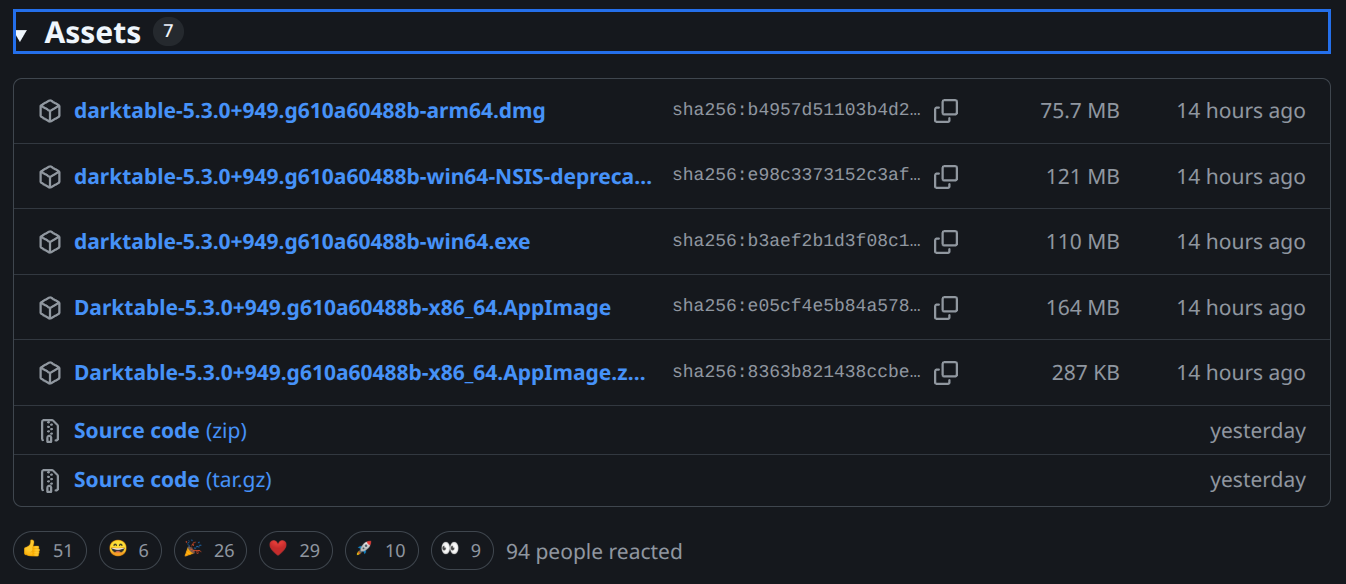
In preparation for the DT 5.4 release, a current beta build is used (https://github.com/darktable-org/darktable/releases).
The First Start
Darktable is (very) extensive. This is a big advantage “later”, but can be overwhelming for the beginning. For a quick and simple start, it is important to concentrate on the essentials.
At the first start, DT (Darktable) looks as follows; here we use a Custom Theme for the further course.
The first view in DT is the Lighttable, it serves for managing and culling your images.
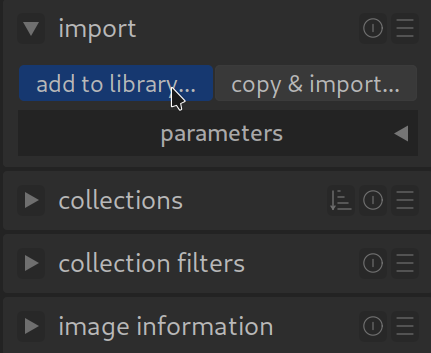
To add your photos, you will find the menu for importing at the top left.
There are two options:
- add to library (importieren)
- copy & import (importieren & kopieren)
Add to library is used to import an existing collection.
Copy & import is used, for example, to import photos from a camera and copy them into the collection folder.
Before proceeding with the import, a brief information on how DT “handles” your photos. During import (& copy), we fill the database with the location data and read further information such as Exif data.
At the same time, DT creates (unless set otherwise) so-called sidecar XMP files. These serve, among other things, as a “backup” for editing and further information. If the database is damaged, all data (for the database) can be restored using the XMP sidecar files.
Important: Your photos are never directly modified! You can export them later with your edits.
The First Import
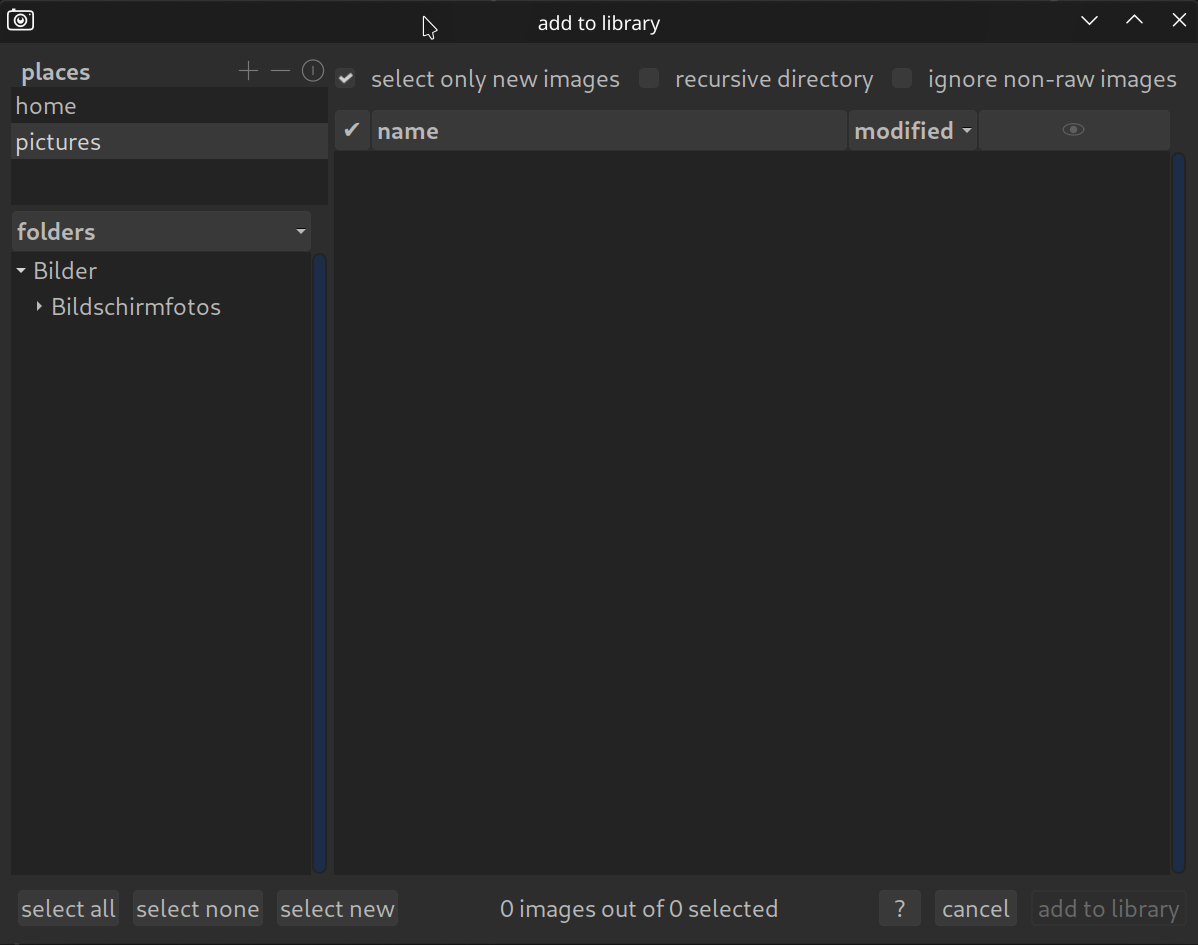
If the location of your photos is not listed, click on the “+”, the following view opens:
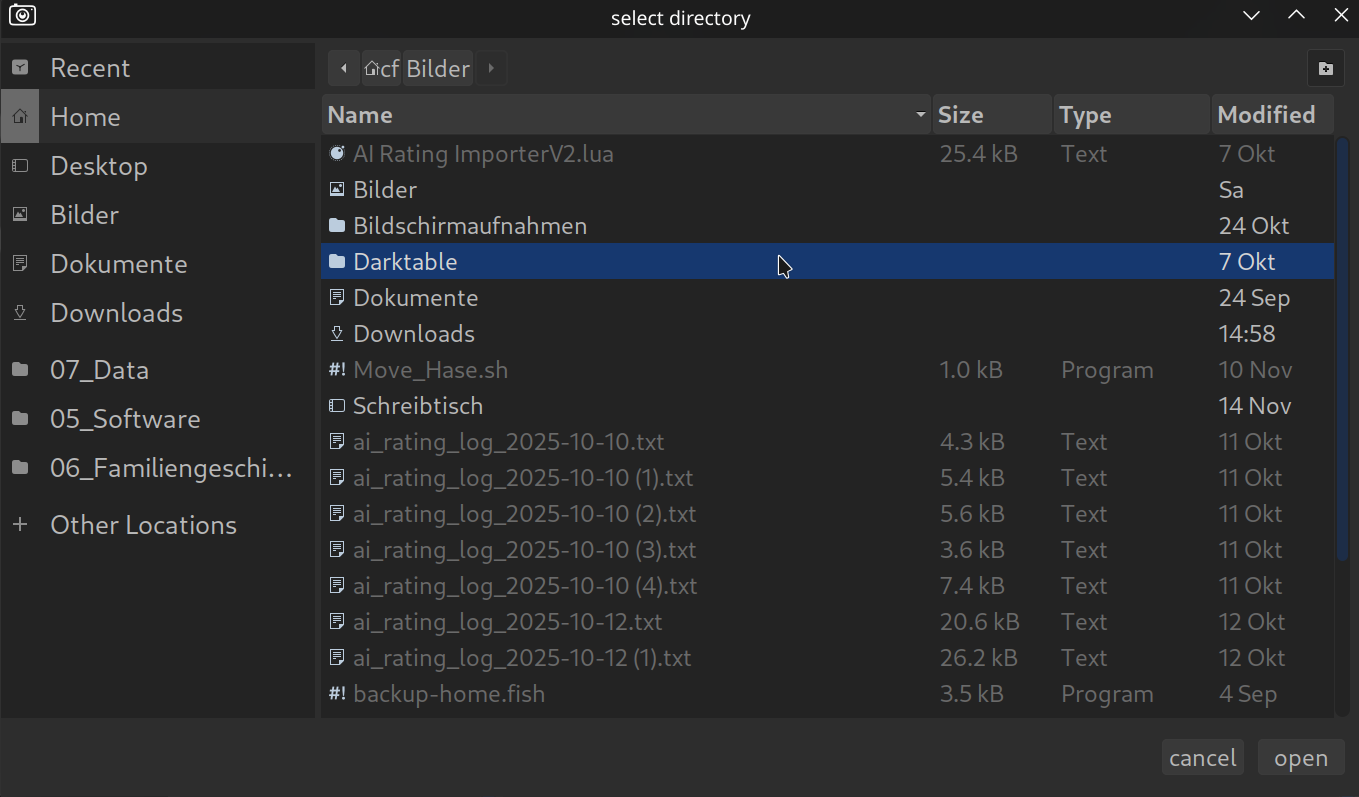
Confirm the folder containing your collection with “Open“.
This adds the folder with your collection to the locations.
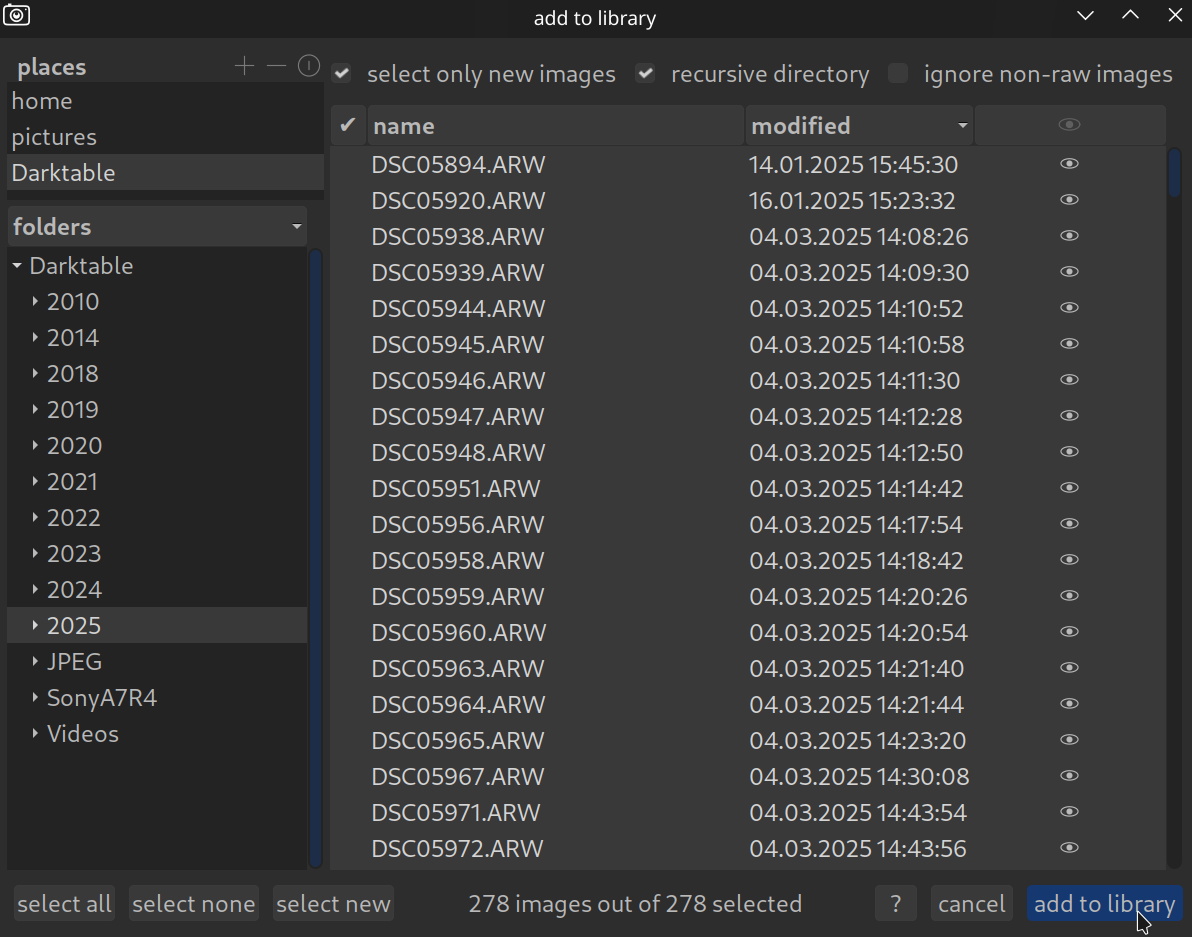
If your collection is organized in subfolders, activate “recursive directory”. If you (like me) do not want to manage or edit your JPEG photos with DT, also activate “ignore non-raw files”.
Start the import with “Add to library“.
DT now displays your photos in the Lighttable.
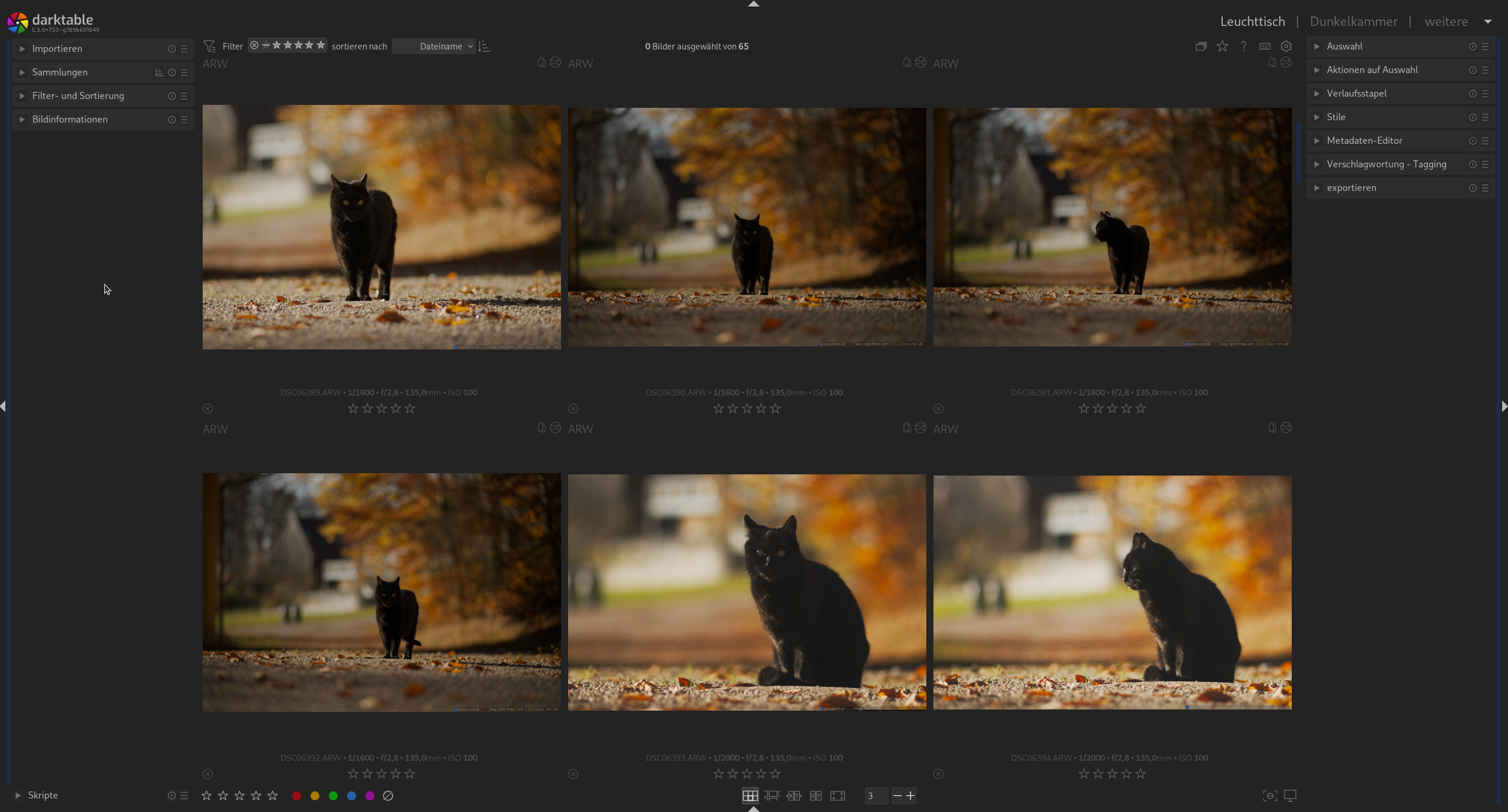
Open the collections menu at the top left.

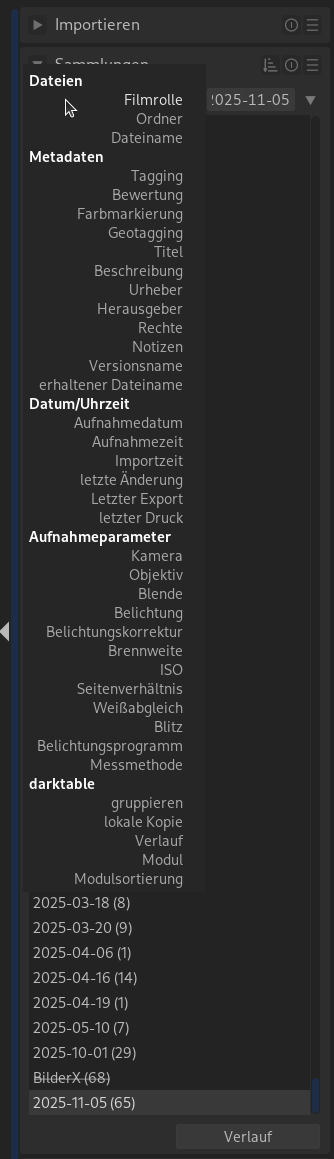
The default view in DT is “film roll”.
Click on “film roll” (in the second line after collections) to open the view options.
Especially for large collections, the folder view is recommended.
Here you also find the option to change the sort order.

With a double click (left mouse button) you open a folder; this displays all photos in the folder including subfolders.

With a click of the left mouse button on a thumbnail, you select a photo.

The Darkroom
There are various ways to open the darkroom:
- Click on Darkroom at the top right
- Double click on a photo
- Shortcut
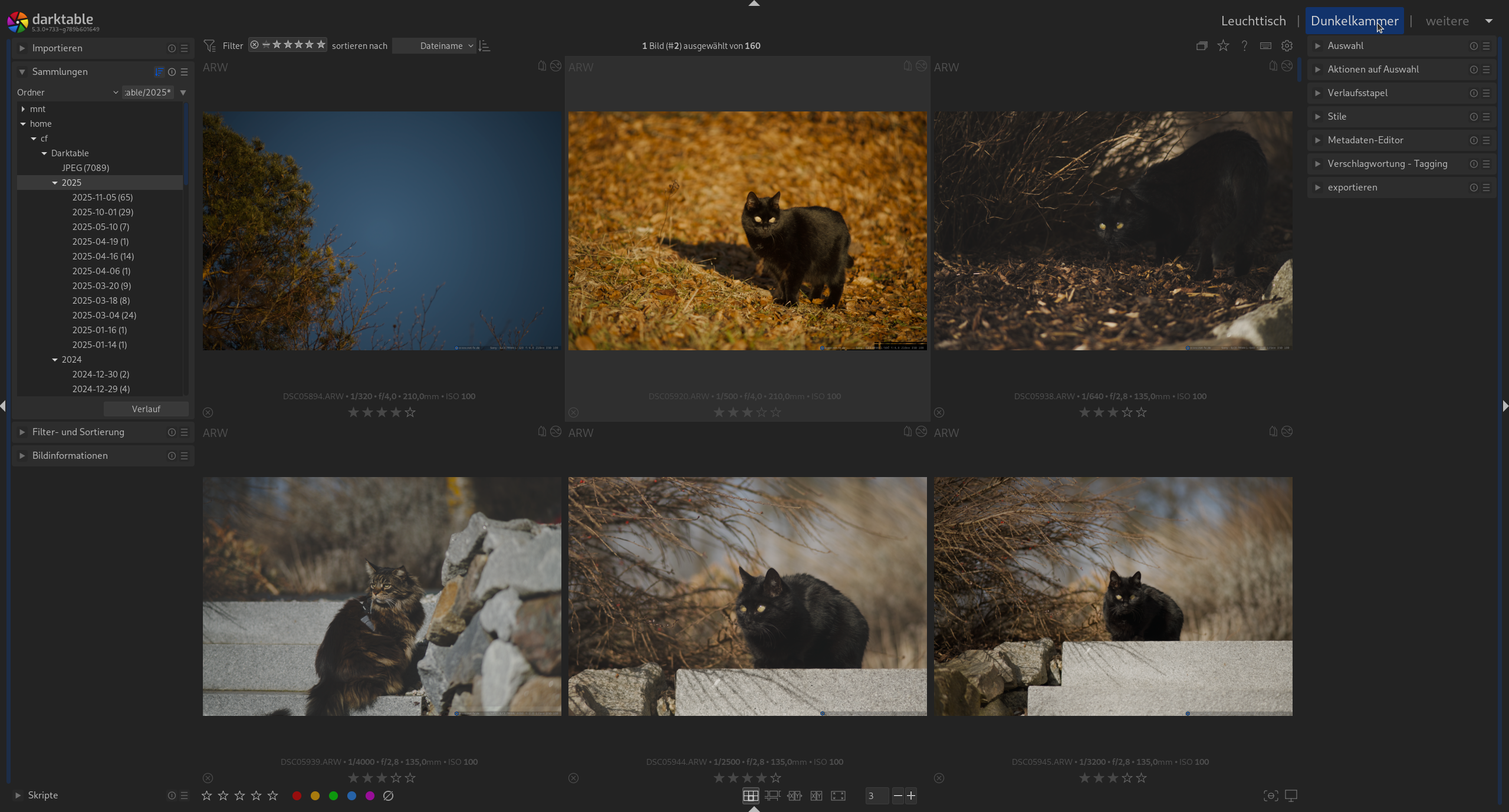
The darkroom looks as follows.
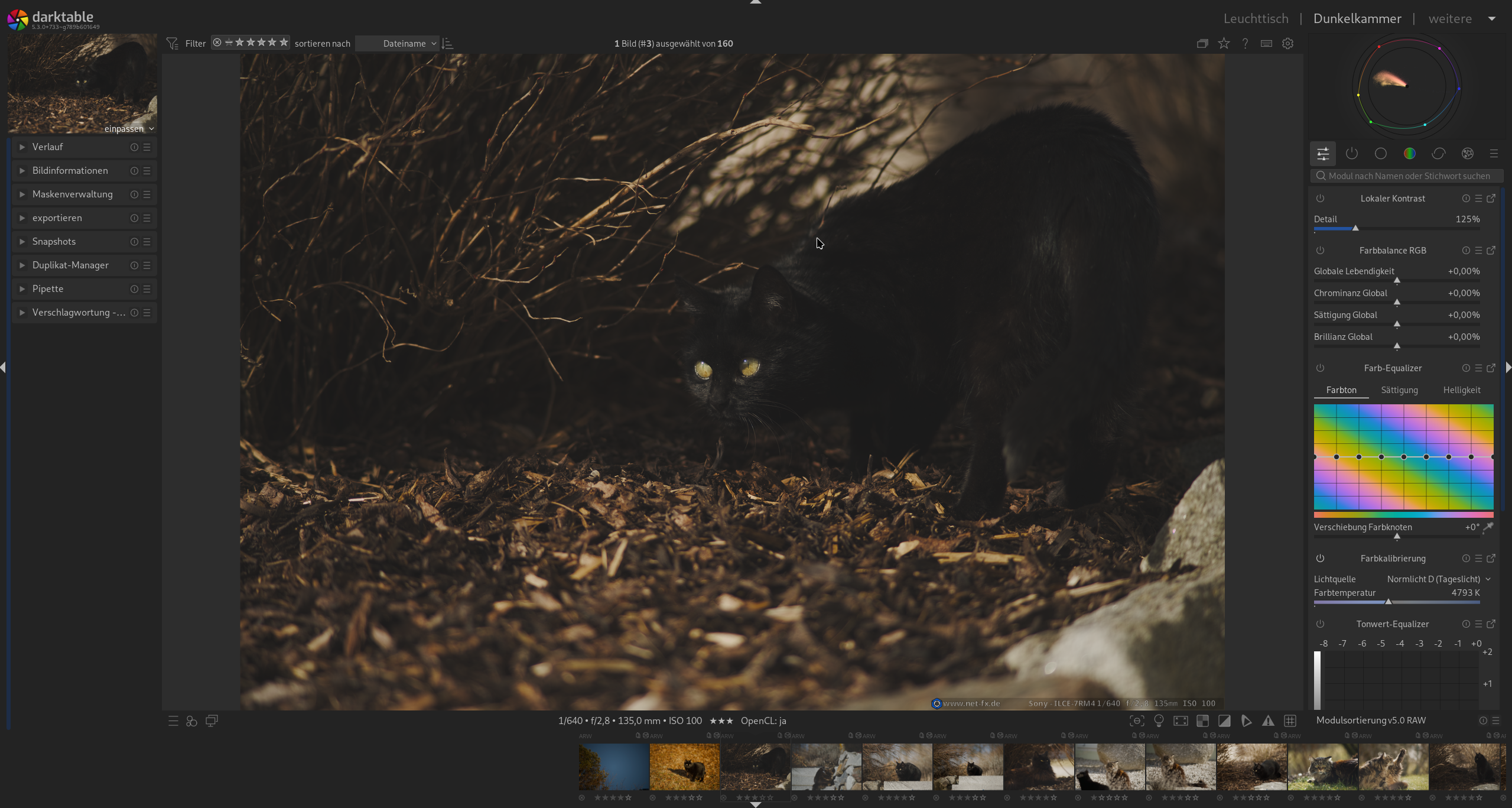
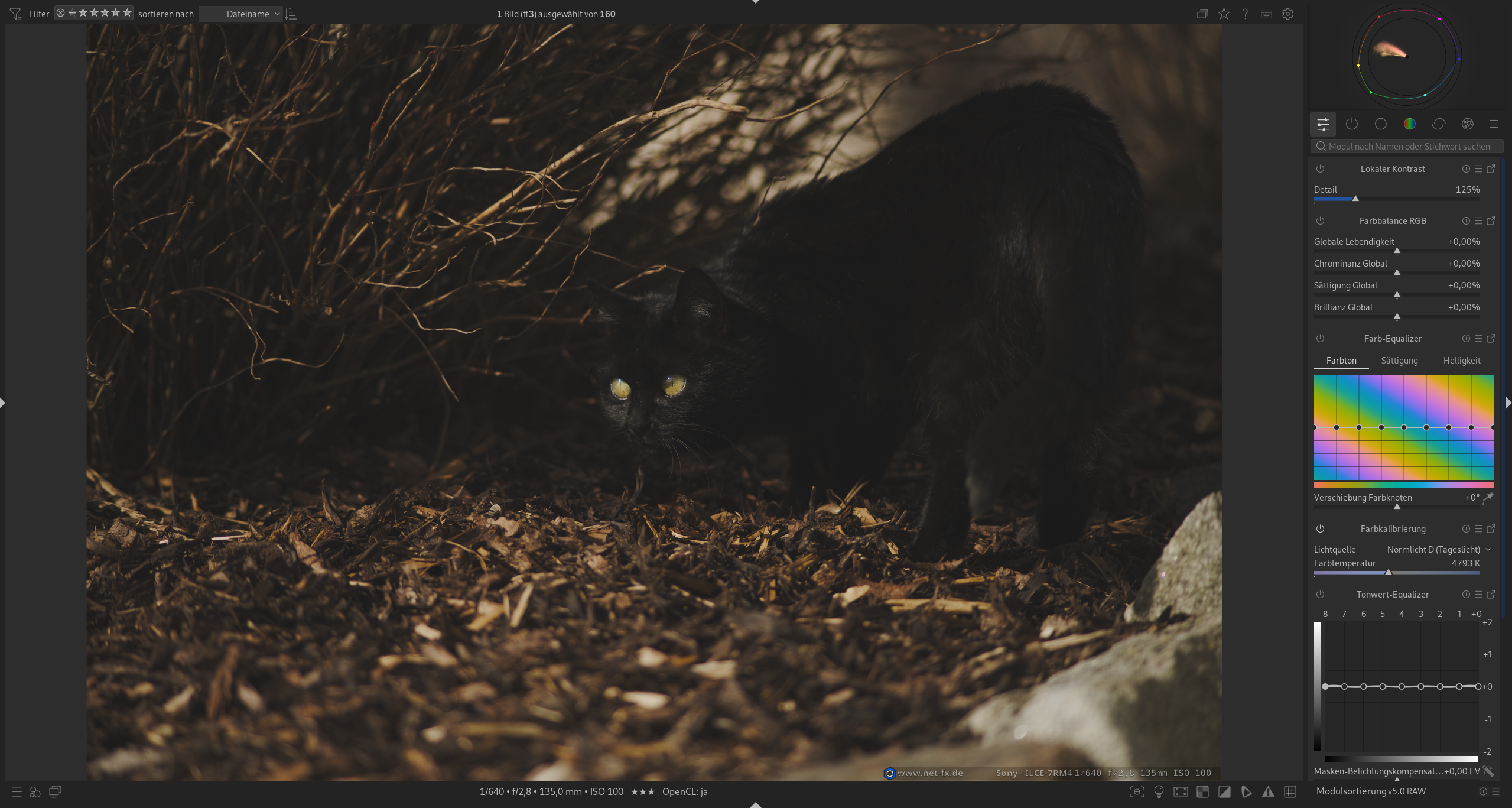
For the moment, we forget the left side and hide it with the small arrow symbol on the left edge. While we’re at it, let’s create more “space” and try out the arrows at the top and bottom edges right away.
Now the darkroom should look similar to this; this simplified view is all that is necessary for editing a photo for the moment.
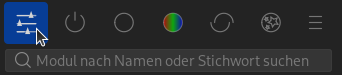
Top right under the histogram you find the menu for the module filters.
As already mentioned, DT offers a (very) large selection of different modules; a large part of the modules are for special use cases. With the use of module groups, the modules are sorted/filtered by their function.
Quick access group
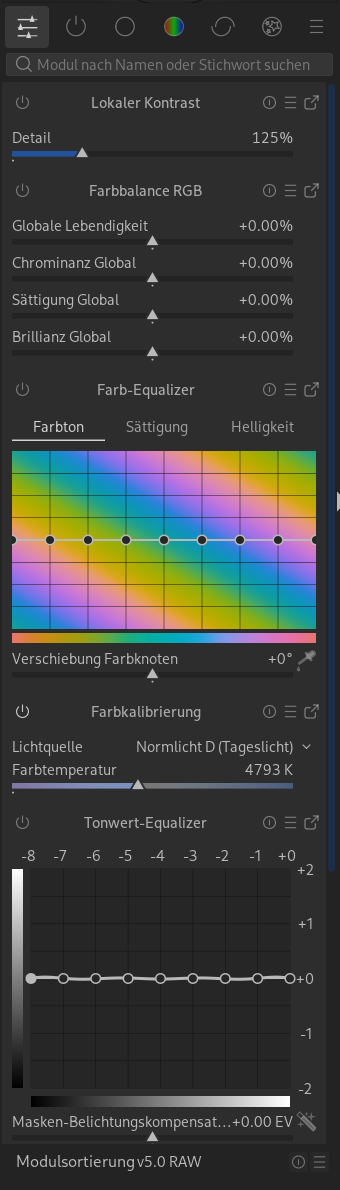
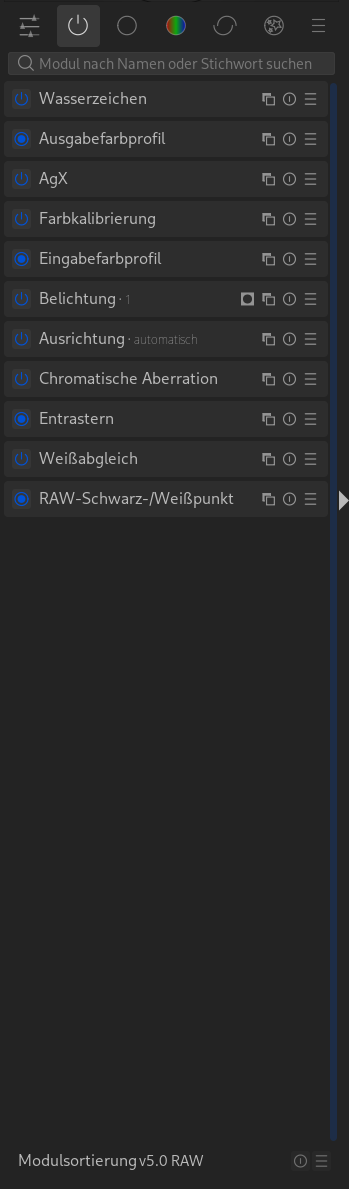
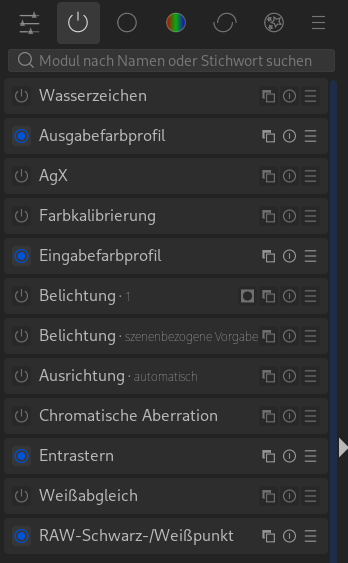
Active modules
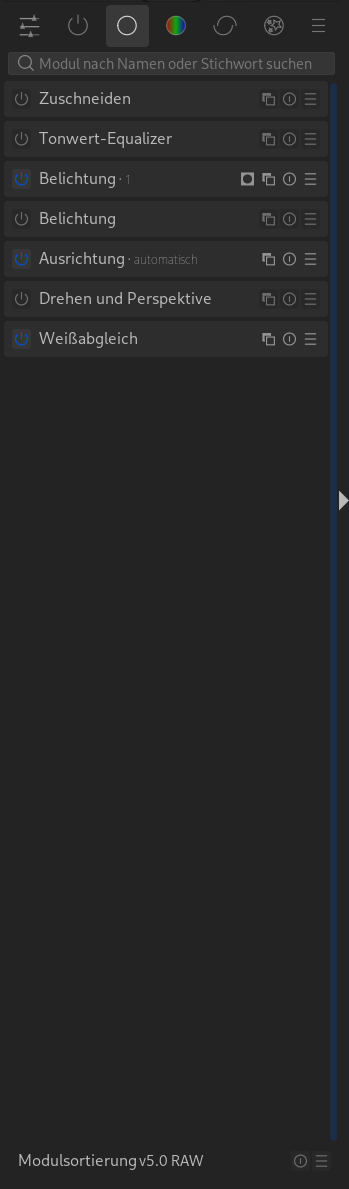
Base processing
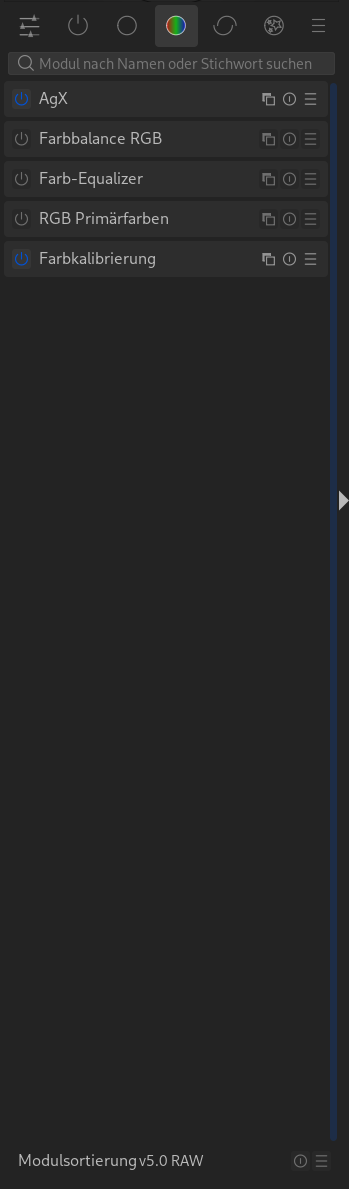
Color
Corrections
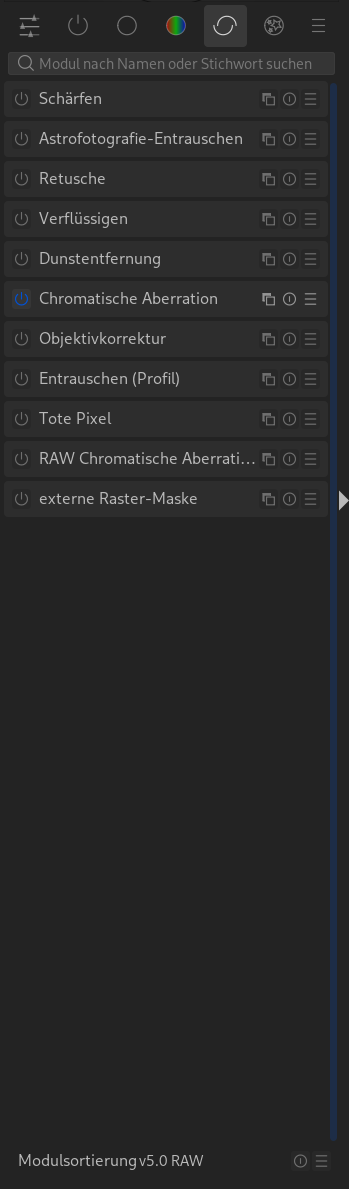
Effects
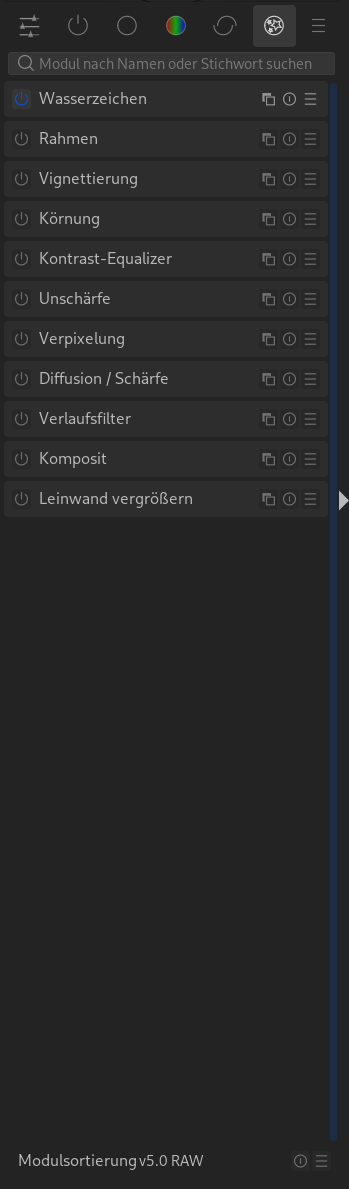
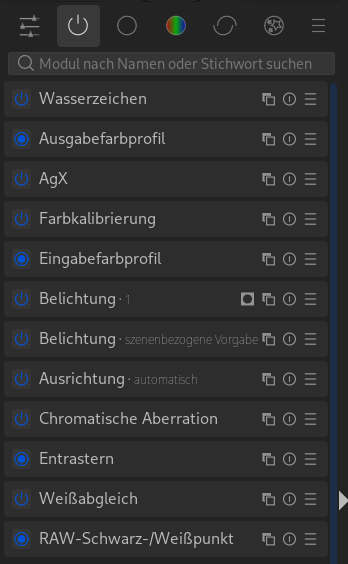
For the moment, let’s look at the “active modules“. The following points are ALL important to be able to edit with DT in a relaxed manner later.
You probably noticed that my example image already contained some active modules; this is not accidental.
A blue symbol means active module.
There are “optional” modules. Optional means it is not mandatorily required for the output of a photo (to the screen).

Furthermore, there are non-optional modules that are mandatorily required for output. These have a circle with a border.

In the following image you see two special features:
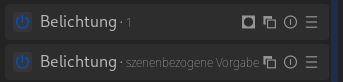
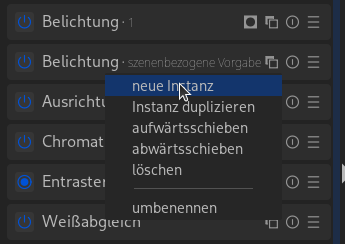
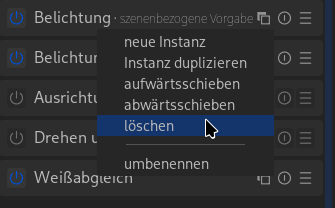
First, the “Exposure” module exists twice. Darktable has the option to provide multiple instances of a module.

This symbol opens the menu for managing the modules.

Second, there is the symbol for masks (square with circle); it indicates that a mask was applied to the Exposure 1 module.
I deliberately do NOT go into the pixel pipe and the like at this point. The goal is a basic understanding of the most important steps for editing a photo.
Masks in DT
We open the third “module group” Base processing and activate the submenu with a left-click on Exposure.
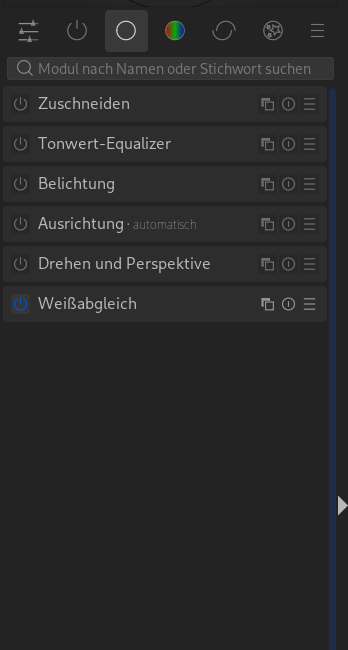
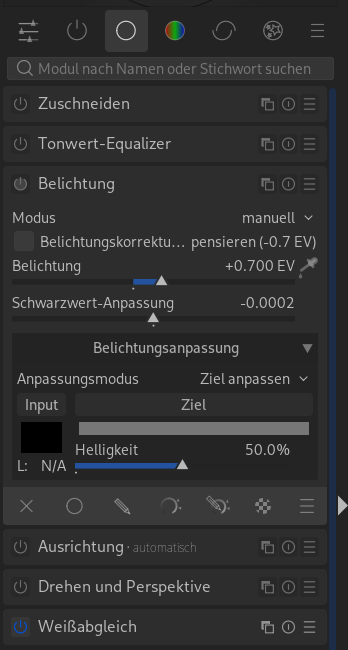
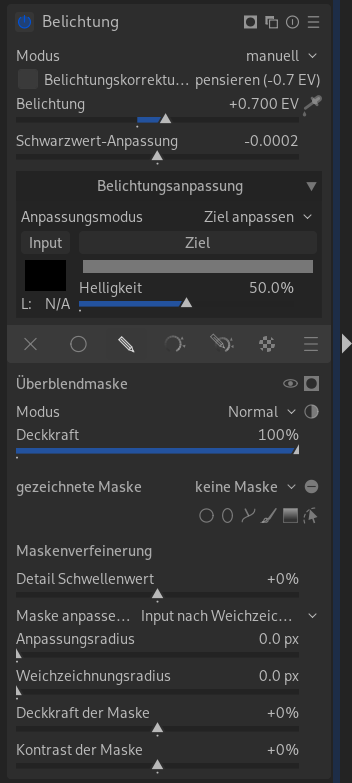
The important part for this step is the mask menu. Open the submenu for drawn masks (symbol with pencil) with a left-click.


On the image to the right, you see the complete current menu for Exposure -> drawn masks.
To add a drawn mask, there are the following options.

The dropdown menu shows “no mask” because we haven’t drawn a mask yet. Later, drawn shapes/masks can be reused with this.

To the right of the dropdown menu is the “-” symbol, which changes to a “+” with a click. This inverts the drawn mask, or not.
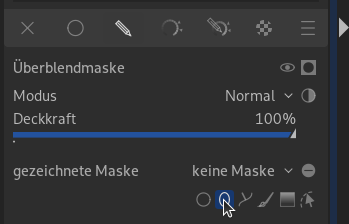
The following menu shows the options for drawn masks.

- Circle
- Ellipse
- Path
- Brush
- Gradient
The rightmost symbol (path with mouse cursor) is for displaying already drawn masks.
The First Mask
Click on the symbol for Ellipse.
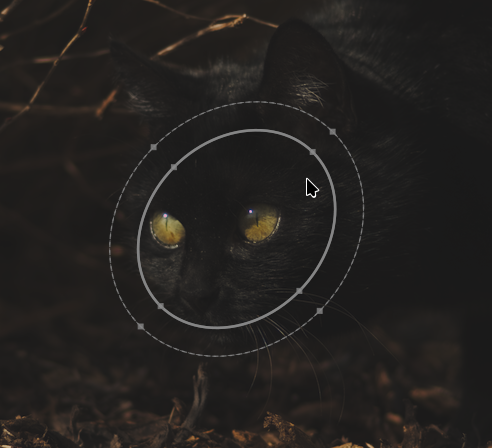
Now move the mouse over the desired “target” and confirm with a left-click.
The inner ellipse is the core area of the mask, the dashed ellipse is the area where the mask “feathers” out. At this point, keyboard shortcuts in DT are really useful.
- Right-click with the mouse deletes the mask
- Scrolling (with the mouse) enlarges/reduces the mask (the mouse pointer must be inside the mask)
- Ctrl + Scrolling changes the opacity of the mask
- Shift + Scrolling changes the distance between the core area and the dashed ellipse (feathering)
- Ctrl + Shift + Scrolling rotates the mask
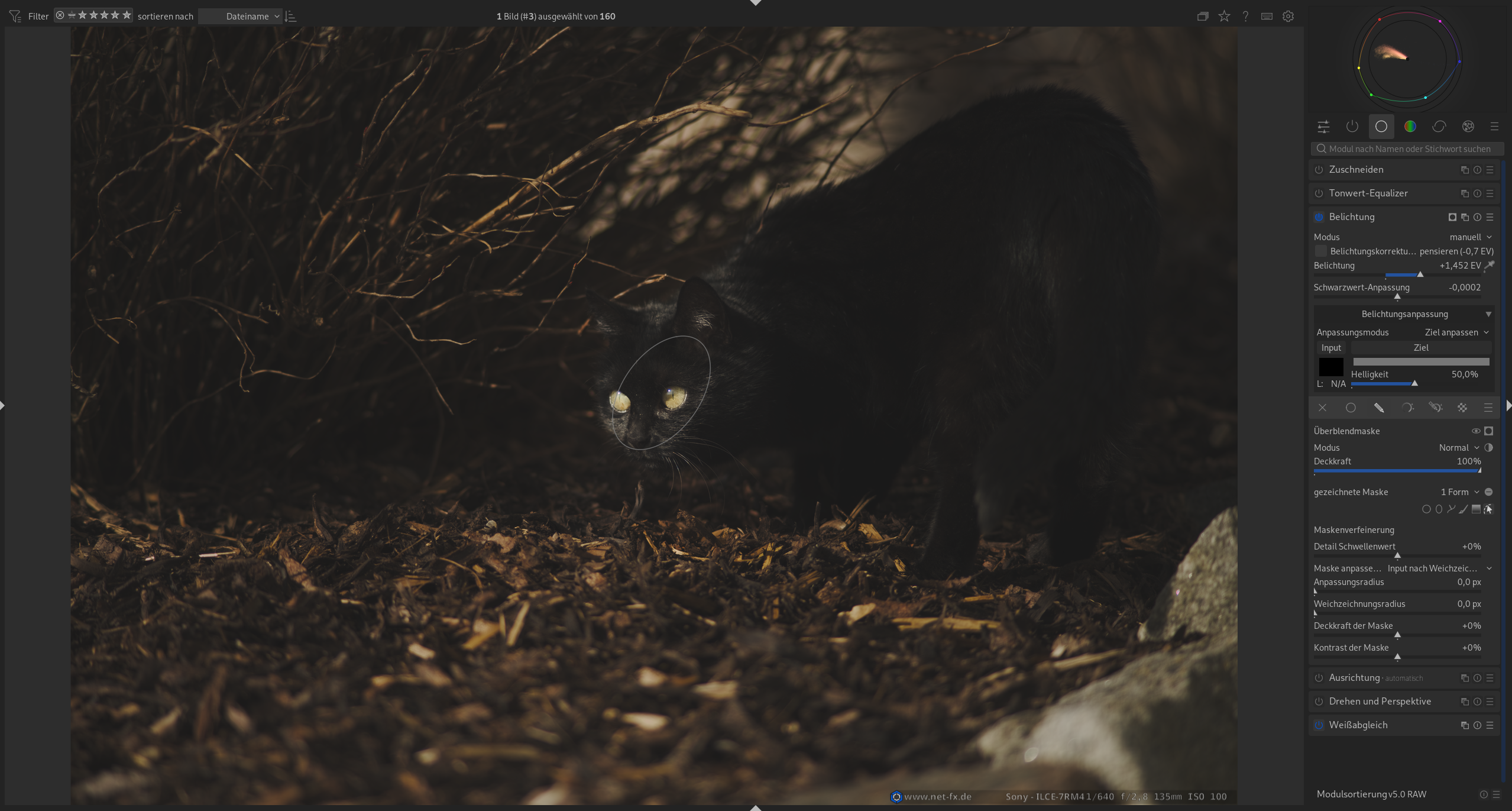
With the “Exposure” slider, you can now change the brightness. The change is limited to your drawn mask.
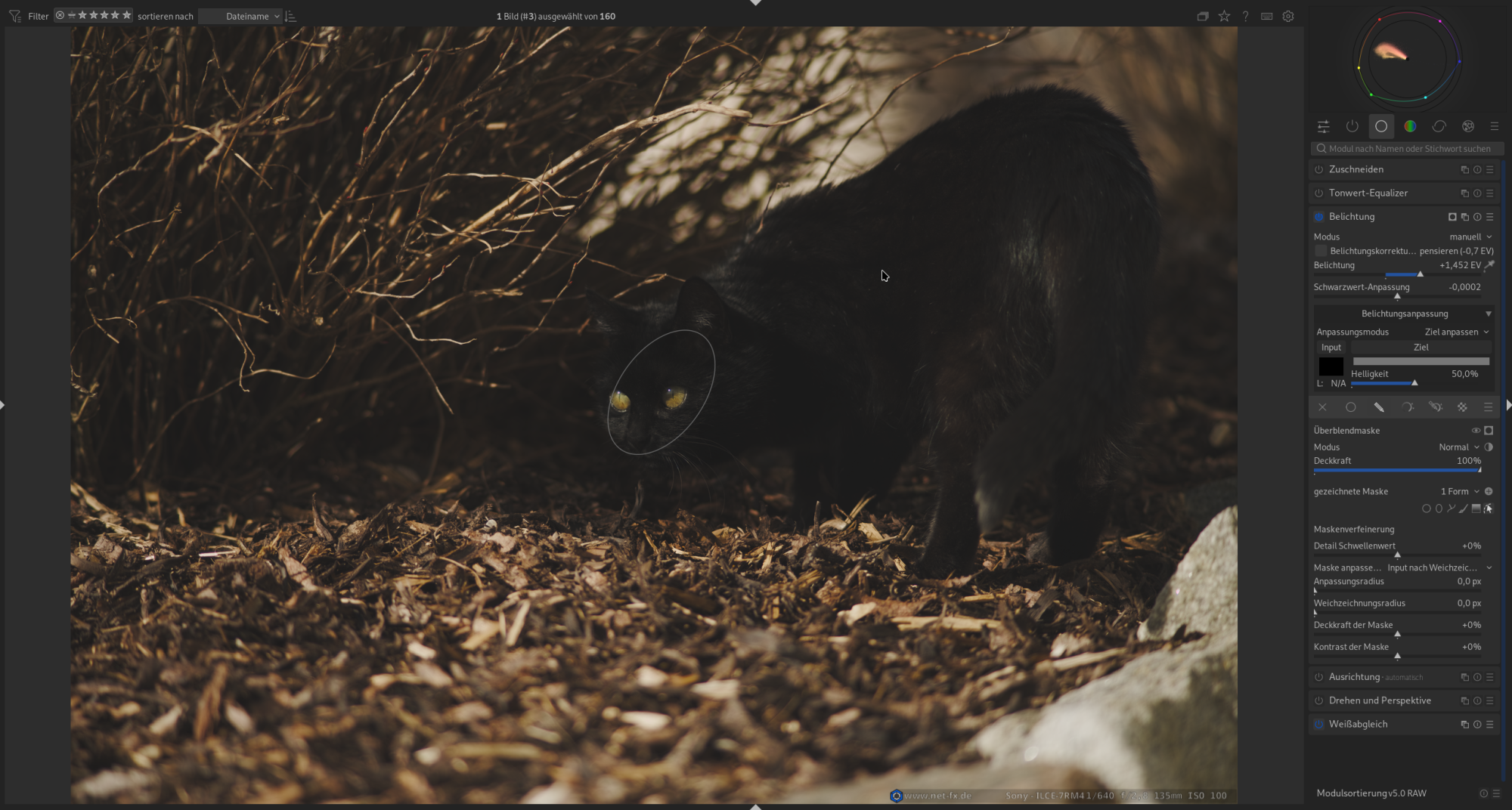
The mask can be inverted with a click on “-” or “+”.
If the transition between the mask and the rest of the photo is too “hard”, use the slider for “mask feathering“.
If you want to delete an instance of a module, you will find the option as shown in the image on the right.
We haven’t discussed two symbols yet. One is the circle with the line in the middle; with this, you reset all settings for the module.
The three lines (hamburger symbol) show you further options for the module.
With this, you have all the basics and can now try out all modules and settings. Have fun!