
December 6, 2025
The Standard Workflow: In 5 + 1 Steps to the Image
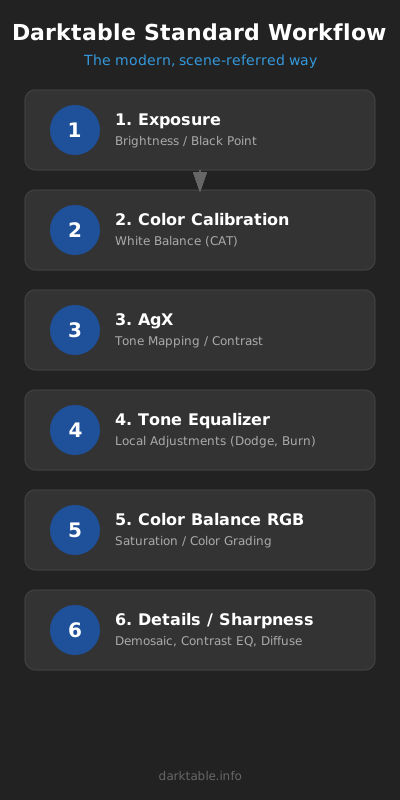
Whether landscape, portrait, or architecture – 90% of all images can be developed with the same few modules. This workflow is scene-referred, which means: We work physically correctly and do not destroy any image information.
Step 1: Exposure
Goal: Set the brightness of the midtones.
- Ignore blown-out highlights or crushed shadows. Focus only on your main subject (e.g., the face or the central object).
- Adjust the slider so that this subject looks correctly exposed.
- Tip: Use the automatic picker in the module if you are unsure.
Step 2: Color Calibration
Goal: The correct white balance.
- The old “White Balance” module remains at “Camera Reference”.
- Use Color Calibration to adjust the color temperature.
- Why? This module (CAT) works much more precisely and prevents color shifts in the highlights better than the old white balance.
Step 3: AgX (or Sigmoid/Filmic)
Goal: Taming contrast and dynamic range (Tone Mapping).
- Here we map the huge dynamic range of the camera to the limited range that your monitor can display. Thus, you bring the too-bright highlights and too-dark shadows back into the visible range.
- The image gets its “look” and global contrast here.
Step 4: Tone Equalizer
Goal: Local brightness adjustments (Dodge & Burn).
- If AgX makes the image look good globally, but the foreground is still too dark or the sky too bright, this module comes into play.
- It is the modern, better replacement for “Shadows and Highlights”.
- Operation: Hover the mouse over the area in the image you want to change and scroll the mouse wheel (if the cursor mode is active).
Step 5: Color Balance RGB
Goal: Saturation and Color Grading.
- Here you give the image “pop”.
- Use the “Global Saturation” slider (or “Vibrance” in the preset) to boost colors.
- This is the modern replacement for almost all old color sliders.
Optional: Sharpness, Details & Noise
Once exposure and color are correct, it’s time for details. Here you have three tools to choose from, depending on the goal:
The Basis: Capture Sharpening (New since Darktable 5.4)
- Where: In the Demosaic module.
- What: Simply check the box for “Capture Sharpening”.
- Why: This removes the slight blur of the camera sensor directly at the source. It is the cleanest and fastest way to basic sharpness. Make this the standard!
The Creative: Contrast Equalizer
- Where: Module Contrast Equalizer.
- What: Your tool for “crispness” and “pop”.
- How:
- Pull the curve up on the far right for fine sharpness.
- Pull the curve up in the middle for more “clarity” (local contrast/structure).
- Why: It is extremely intuitive. You determine exactly which details should be emphasized (fine pores or coarse structures).
The Perfectionist: Diffuse or Sharpen
- Where: Module Diffuse or Sharpen -> Preset “Lens Blur Removal”.
- Why: If you need the absolute maximum quality for large prints. It calculates more physically correctly than the Contrast Equalizer but requires much more computing power.
Denoise (Profiled)
- Where: Module Denoise (Profiled).
- When: Only if necessary (high ISO). Darktable detects your camera automatically.
Summary: The 5+1 Workflow
Darktable automatically sorts the modules correctly internally (pixelpipe). So you don’t have to worry about where a module is technically located. But for your workflow, this order has proven itself:
- Exposure:
The foundation. Set brightness of midtones (main subject). - Color Calibration:
The base color. Correct white balance so that white is actually white. - AgX (or Sigmoid):
The frame. Set contrast and define black/white point (dynamic range compression). - Tone Equalizer:
The balance. Brighten too-dark shadows or dampen too-bright highlights. - Color Balance RGB:
The look. Increase saturation, shift colors, and give the image character.
+1. Sharpness & Details (Optional):
At the very end, when the look is set.
- Capture Sharpening (in RAW)
- Contrast Equalizer or Diffuse/Sharpen (for the “pop”)
- Denoise